What Is Bridge Mode, and When Should You Turn It On?
Contents
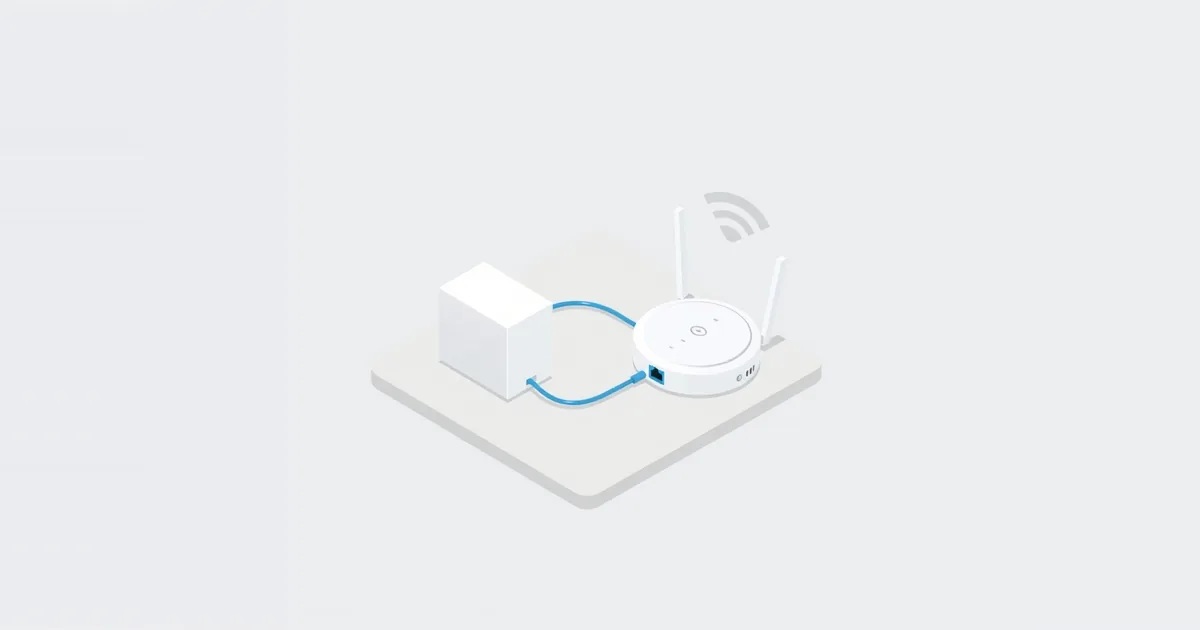
Many internet providers give you a single box that is both a modem and a router. That works until you add your own router or mesh system behind it: now two devices are routing your traffic, and things like gaming, port forwarding and some apps start to misbehave. Bridge mode is the fix. It switches off the router part of the provider’s box so it acts only as a modem, and your own router does the rest.
What Bridge Mode Does
On an ISP gateway, bridge mode turns off the routing and the Wi-Fi, but keeps the modem working. Xfinity describes it exactly that way: the gateway’s routing is turned off while the modem stays on, so you can connect and use your own router. eero, which makes mesh systems, gives the same general definition: bridge mode disables a device’s routing and Wi-Fi so it works only as a modem or access point.
The practical result is that your own router gets the public IP address from your provider directly. Rogers puts it this way: with bridge mode on, your router can pull a public IP address when it is plugged into the modem. Your router then handles everything a router normally does — assigning local addresses (DHCP), NAT, the firewall and Wi-Fi.
If you are not sure which box is which, see modem vs router.
When to Use It: Double NAT
The main reason to use bridge mode is double NAT. Google explains it simply: double NAT happens when another router, such as a Nest Wifi router, is connected to the ISP’s modem or gateway. Each router translates addresses, so your traffic goes through two layers of translation.
For browsing and streaming, double NAT is often unnoticeable. Google notes it can cause problems with online games, port forwarding and UPnP — the same things that lead to a strict NAT type on consoles. See what is double NAT and NAT type strict.
That is why router makers recommend bridging the provider’s box:
- Google calls bridge mode on the modem/router combo the best solution to double NAT.
- eero recommends putting the combo unit in bridge mode after the initial setup, for the best performance and access to all eero features.
- NETGEAR recommends bridge mode on the ISP gateway with your NETGEAR or Orbi router in router mode.
If you don’t have your own router, you don’t need bridge mode at all — turning it on would leave you without Wi-Fi.
What You Lose
Bridge mode hands all routing to your router, so the gateway’s own features go away. On Xfinity, for example:
- The gateway’s private Wi-Fi network turns off — your own router must provide Wi-Fi.
- You can’t manage and personalize your network in the Xfinity app or use Xfinity WiFi Extenders. If you already activated extenders, Xfinity won’t let you turn bridge mode on.
- Xfinity CyberSecure is no longer available.
- Only one device can be connected to the gateway — your router. Plug everything else into the router.
Bridging your own router instead of the ISP box has its own costs. Google warns that putting Nest Wifi in bridge mode disables many of its security protections, and eero lists eero Plus features such as advanced security, ad blocking and content filters that don’t work properly in bridge mode. That’s why these makers prefer to bridge the provider’s gateway and keep their own system as the router.
How to Turn It On
The exact steps depend on the gateway. On an Xfinity gateway:
- Connect a device to the gateway and open http://10.0.0.1 in a browser. Xfinity notes you may first have to enable Admin Tool access in the Xfinity app.
- Log in as admin with the password printed on the gateway’s sticker.
- Go to Gateway → At a Glance and click Enable next to Bridge Mode, then confirm. The gateway may restart.
- Connect your router’s WAN or Internet port to any Ethernet port on the gateway — see WAN port vs LAN port.
To turn it off again, log in to the same page with a device connected by Ethernet cable and set Bridge Mode to Disable. Rogers, whose gateways use the same Admin Tool, adds that the page stays reachable at 10.0.0.1 in bridge mode and that a factory reset of the gateway also turns bridge mode off and Wi-Fi back on.
For other providers, look for “bridge mode” in your provider’s support pages or in the gateway’s admin page. If you don’t know the gateway’s address, see what is my router IP.
AT&T: IP Passthrough Instead
Not every provider offers true bridge mode. AT&T states that bridged mode is not possible on its platform. Its gateways offer IP Passthrough instead: the gateway shares its WAN IP address with a single device on your network — your router.
- Only one device can be in passthrough mode.
- AT&T warns that a device in passthrough mode loses the firewall protection of the AT&T gateway, so your router’s firewall must do the job — see does my router have a firewall.
- If you use your own router’s Wi-Fi, check whether the gateway’s Wi-Fi is still on and turn it off in the gateway’s settings to avoid two competing networks.
In AT&T’s instructions for BGW210 and BGW320 gateways, you turn off the advanced firewall options, then in IP Passthrough set Allocation Mode to Passthrough, choose your router by its MAC address, and save.
Bridge Mode vs Access Point Mode
Both modes stop a device from routing, but they are used on different boxes:
- Bridge mode is usually set on the ISP gateway, so your own router does the routing.
- Access point (AP) mode is set on your own router, when you want to keep the ISP gateway as the router and use your router only for Wi-Fi.
AP mode is the fallback when the ISP box can’t be bridged, but it costs features. NETGEAR lists guest network, website blocking, VPN service and remote management among those disabled in AP mode; TP-Link says the router provides only basic functions, because the WAN port is no longer used; ASUS says the firewall, IP sharing and NAT are disabled by default. See how to set up a router as an access point.
“Bridge” on Your Own Router Means Something Else
On some home routers, a mode called bridge or wireless bridge isn’t about modems at all. NETGEAR’s wireless bridge mode connects a router to your main router over Wi-Fi to extend your network, and ASUS calls its bridge function WDS (Wireless Distribution System), which links the router to an access point wirelessly. TP-Link describes its Bridge mode as similar to range extender mode. If you want to fix double NAT, this is not the setting you need — see mesh Wi-Fi vs extender if your goal is coverage.
Frequently asked questions
What does bridge mode do?
It turns off the routing and Wi-Fi in a modem/router combo so it works only as a modem. Your own router gets the public IP address and does all the routing.
Should I use bridge mode?
Yes, if you have your own router or mesh system behind an ISP gateway — it removes double NAT. No, if the ISP gateway is your only router, because you would lose your Wi-Fi.
Does bridge mode make internet faster?
Not by itself — it doesn’t change your plan’s speed. It removes the second layer of NAT, which can fix problems with games, port forwarding and UPnP.
What is the difference between bridge mode and access point mode?
Bridge mode is set on the ISP gateway so your router does the routing. Access point mode is set on your own router so the ISP gateway does the routing and your router only provides Wi-Fi.
How do I turn off bridge mode?
Log in to the gateway’s admin page with a wired device and disable it. On some gateways, such as Rogers’, a factory reset also turns bridge mode off.
Sources
- Use Bridge Mode on your wireless gateway — Xfinity Support
- Turn bridge mode on or off for your Ignite WiFi Gateway modem — Rogers
- Fix Double NAT when two routers run at the same time — Google Home and Nest Help
- What is bridge mode? — eero Support
- What is the difference between router mode and AP mode? — NETGEAR Support
- Configuring IP Passthrough and DMZplus — AT&T Business Support
- Introduction of Operation Mode — ASUS Support