How to Turn an Old Router Into an Access Point or Extender
Contents
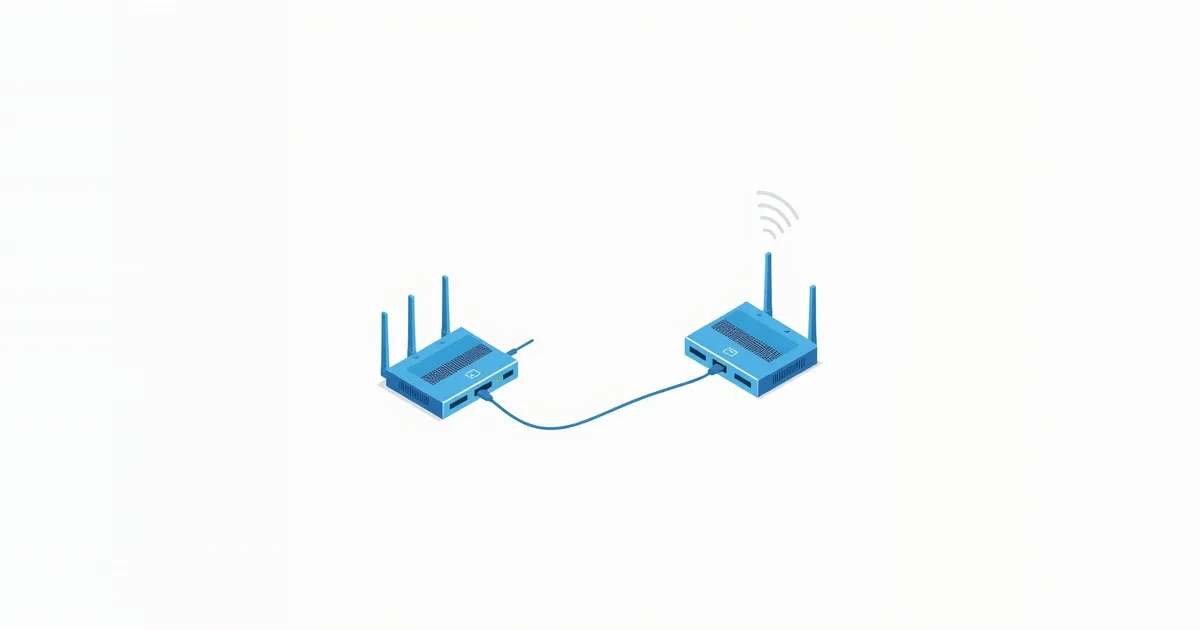
An old router in a drawer can fix a Wi-Fi dead zone for free. Connected to your main router with a network cable and set up as an access point, it adds a second source of Wi-Fi in the far bedroom, the home office or the garden room, while your main router keeps doing all the routing. The setup takes about fifteen minutes.
Access Point, Extender or Second Router?
| Setup | Connection to main router | Result |
|---|---|---|
| Access point | Ethernet cable | Full-speed Wi-Fi where the old router stands. The best option. |
| Repeater (extender) | Wi-Fi, no cable | Coverage where cables cannot go, at roughly half the speed or less. |
| Second router (plugged into the main router’s LAN, WAN port used) | Ethernet cable | Works, but creates double NAT and a separate network. Avoid. |
This guide focuses on the access point setup, because it gives the best result. If you cannot run a cable, see the repeater section or consider powerline or MoCA adapters, described in Ethernet vs Wi-Fi.
Before You Start
- Find your main router’s address and DHCP range. On a computer connected to your network, check the default gateway — see what is my router IP. Then look in the main router’s LAN or DHCP settings for the address pool it hands out, for example 192.168.1.100 to 192.168.1.199.
- Reset the old router to factory settings, so no forgotten settings get in the way; see how to factory reset a router.
- Connect a computer to the old router only, with a cable or its default Wi-Fi, and open its settings page at the address on its label.
- Update its firmware if updates exist; old firmware may lack access point mode. See how to update router firmware.
If the Router Has an Access Point Mode
Many routers from the last decade can switch roles with one setting. On TP-Link routers, according to TP-Link’s guide, it is under Advanced → Operation Mode or Advanced → System → Operation Mode (on some models, a Change Mode button at the top of the page): select Access Point, save, and let the router restart. Other brands call it AP Mode, Access Point Mode or Bridge Mode, usually under Administration, System or Operation Mode.
After the restart, connect a cable from a LAN port on your main router to the old router, set the Wi-Fi name and password, and you are done. In access point mode the router takes its address from the main router and stops handing out addresses itself.
The Manual Method for Any Router
If there is no access point mode, you can build one by hand. These are the same steps TP-Link describes for its routers without the setting:
- Give the old router a fixed address on your main network, outside the main router’s DHCP range. If the main router is 192.168.1.1 and hands out .100 to .199, set the old router’s LAN address to 192.168.1.2. This is in the LAN settings. Write the address down — it is how you will reach the old router’s settings later.
- Set the Wi-Fi name, password and security (see the next section).
- Turn off the DHCP server on the old router. Only the main router should hand out addresses.
- Save and restart the old router.
- Connect the cable from a LAN port on the main router to a LAN port on the old router — not its WAN or Internet port, which stays empty.
Devices that join the old router now get their addresses from the main router and are on the same network as everything else: printers, TVs and phones see each other normally.
Wi-Fi Name, Password and Channels
Same name and password, or different? With the same name, password and security on both, devices switch between them on their own, although older devices sometimes stick to the weaker signal too long. A different name, such as “Home-Office”, gives you control over which one each device uses. Either works; start with the same name and change it if a device misbehaves.
Security. Use WPA2/WPA3 mixed mode if the old router supports it, or WPA2 with AES; see WPA2 vs WPA3.
Channels. Set the two routers to different, non-overlapping channels so they do not compete: on 2.4 GHz use 1, 6 or 11 — one on each router. The best Wi-Fi channel explains why.
Placement. Put the access point where the coverage is missing, not right next to the main router. The cable makes distance irrelevant for speed, up to 100 meters.
No Cable? Repeater Mode
Some routers offer Repeater, Range Extender, WDS or Wireless Bridge mode, which connects to your main Wi-Fi wirelessly and re-broadcasts it. It needs no cable but halves the available speed or worse, because the old router has to receive and send on the same radio, and old routers repeat their old Wi-Fi standard. Place it halfway between the main router and the dead zone, where the signal is still good. If speed matters, a mesh system or a dedicated modern extender usually does better; how to boost your Wi-Fi signal compares the options.
When an Old Router Is Not Worth Reusing
Reusing hardware is good, but not every old router is an asset:
- No more firmware updates. A router that stopped getting security updates years ago is a weak spot on your network, even as an access point.
- Wi-Fi 4 (802.11n) or older. It will be the slowest part of your network and may drag devices down to its speed.
- Only WEP or WPA security. Then it cannot run safely at all.
In those cases, a modern access point or mesh unit costs little and adds speed instead of limiting it.
Frequently asked questions
Can I use any old router as an access point?
Almost any router with LAN ports can work with the manual method: fixed LAN address, DHCP off, cable to a LAN port. Access point mode makes it easier but is not required.
Should the access point use the same Wi-Fi name?
It can. The same name and password let devices move between the two automatically; a different name gives you more control. Both work.
Which port do I connect the cable to?
From a LAN port on the main router to a LAN port on the old router. Leave the old router’s WAN or Internet port empty in the manual method.
Will an old router slow down my network?
Only devices connected to it are limited by its Wi-Fi standard. A very old router also misses security updates, which is a reason to replace it rather than reuse it.
What is the difference between an access point and an extender?
An access point is connected by cable and delivers full speed; an extender connects over Wi-Fi and loses a large part of the speed.
Sources
- How to Set Up a TP-Link Router as an Access Point — TP-Link
- Access Point Mode vs Router Mode — TP-Link