What Is DHCP and How Does It Work on Your Home Network?
Contents
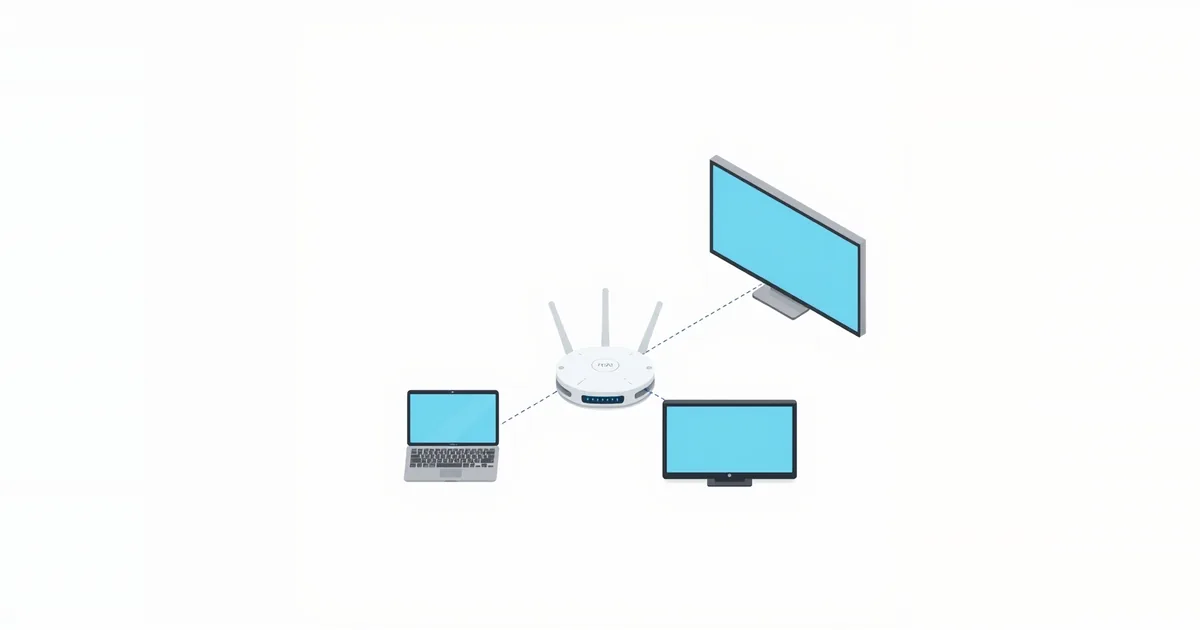
Every time a phone joins your Wi-Fi, it needs an IP address and a few other settings before it can do anything. Nobody types them in: the router hands them out automatically using DHCP, the Dynamic Host Configuration Protocol. It is one of those things that only gets noticed when it breaks — with messages such as “No internet”, “Unidentified network” or an address starting with 169.254.
What DHCP Does
DHCP is a standard protocol (RFC 2131) that lets a server distribute IP addressing and configuration to clients automatically. At home, the DHCP server is built into your router, and Microsoft’s description lists what a client normally receives:
- an IP address, such as 192.168.1.23;
- the subnet mask, usually 255.255.255.0 — see what is a subnet mask;
- the default gateway, which is the router’s own address;
- DNS server addresses, usually the router itself or your provider’s servers.
Your router is a DHCP client at the same time: on its WAN side, it receives its public address from your provider’s DHCP server in exactly the same way. See WAN port vs LAN port.
How It Works: Four Messages
The exchange takes four messages, often remembered as DORA:
- Discover. The new device has no address yet, so it broadcasts a request to the whole network: is there a DHCP server? Microsoft’s packet capture shows it sent from 0.0.0.0 to the broadcast address 255.255.255.255.
- Offer. The router answers with an available address and the other settings.
- Request. The device formally asks for the offered address.
- Acknowledge. The router confirms, and the device starts using the address.
All of this takes a fraction of a second when you join a network.
Leases: Why Addresses Can Change
DHCP does not give addresses away forever; it leases them for a set time. Routers use lease times from a couple of hours to a day or more, adjustable in the settings. Before the lease runs out, the device asks to renew it — by default at half the lease time, and if the router does not answer, again at about seven-eighths (87.5%) of it, as RFC 2131 and Cisco’s documentation describe. A device that stays connected keeps its address; one that is away longer than the lease may get a different one when it returns.
That is why the local address of a laptop or console can change after a weekend away or a router restart — and why port forwarding rules that point at an address can suddenly stop working.
DHCP Settings on Your Router
You will find the DHCP server under LAN, Network or DHCP Server in the router’s settings; what is my router IP helps you sign in. The usual options:
DHCP server on/off. Leave it on — unless the router works as an access point behind another router, where only one device should hand out addresses. Two DHCP servers on one network cause address conflicts; see how to use a router as an access point.
Address range (pool). For example 192.168.1.100 to 192.168.1.199. Addresses outside the range are free for devices you configure by hand.
Lease time. The default is fine for most homes. A shorter lease frees addresses faster in busy guest networks; a longer one keeps addresses steadier.
DNS servers. The addresses handed out to devices. Changing them here changes DNS for every device at once; see best DNS server.
Client list. Shows every device that currently has a lease — useful for spotting unknown devices; see who is connected to my Wi-Fi.
DHCP Reservation vs Static IP
If a device must always have the same address — a printer, a NAS, a game console with port forwarding — use a DHCP reservation: the router keeps assigning the address automatically but always gives the same one to that device, identified by its MAC address. It is safer than typing a static address on the device itself, which can collide with addresses the router hands out. Step by step: what is a static IP address.
Common DHCP Problems
Address starts with 169.254. The device asked for an address and got no answer, so it gave itself a link-local address that only works on the local link. Restart the router; if only one device is affected, renew its address (below) or forget and rejoin the Wi-Fi.
“DHCP is not enabled for Wi-Fi” (Windows). Windows reports this when the adapter is set to a manual address or cannot reach a DHCP server. Set the adapter to obtain an address automatically in its IP settings, then restart the router if needed.
Renewing the address by hand. On Windows, run ipconfig /release and then ipconfig /renew in Command Prompt. On a Mac, open System Settings → Network → your connection → Details → TCP/IP → Renew DHCP Lease. On phones, turning Wi-Fi off and on, or forgetting and rejoining the network, does the same.
Two devices with the same address. Usually a device with a manually set address inside the router’s pool. Move the manual address outside the pool, or replace it with a reservation.
Devices lose internet when a second router is added. Two routers both acting as DHCP servers on one network, or a second router creating its own network — see double NAT.
Pool is full. In homes with many smart devices, a small range can run out. Widen the range in the DHCP settings.
Frequently asked questions
What does DHCP stand for?
Dynamic Host Configuration Protocol. It assigns IP addresses and network settings to devices automatically.
Should DHCP be on or off on my router?
On, in almost every home network. Turn it off only on a second router used as an access point, so that one device hands out addresses.
What is a good DHCP lease time?
The router’s default, usually several hours to a day, suits most homes. Shorter leases help guest networks with many short visits.
Is DHCP a security risk?
Not on a home network with a protected Wi-Fi password. Anyone who joins your network gets an address, so the Wi-Fi password is what keeps strangers out.
What is the difference between DHCP and DNS?
DHCP gives a device its address and settings; DNS translates names such as example.com into addresses. DHCP tells the device which DNS servers to use.
Sources
- DHCP (Dynamic Host Configuration Protocol) Basics — Microsoft Learn
- RFC 2131: Dynamic Host Configuration Protocol — IETF
- DHCP Configuration Guide — Cisco