Ethernet Splitter vs Switch: What Is the Difference, and Which Should You Buy?
Contents
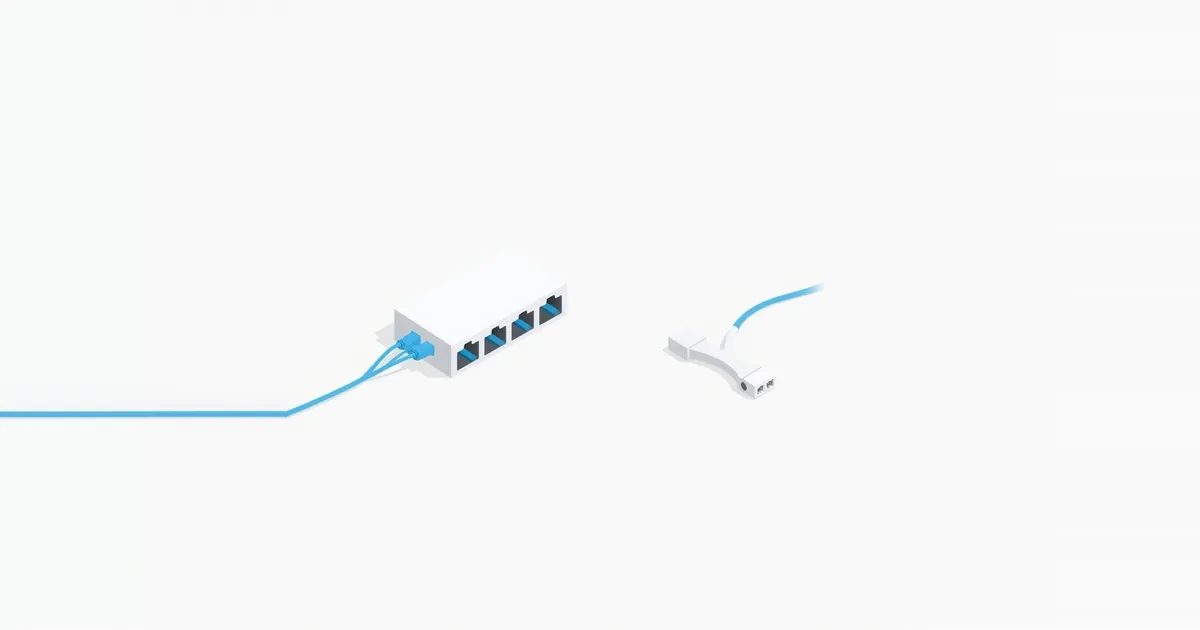
You have one Ethernet port — on the wall, on the router, behind the TV — and two or more devices to plug in. Online stores offer both cheap “Ethernet splitters” and small “switches”, and they look like they do the same job. They do not. In almost every home situation, a switch is the right answer. Here is why.
The Short Answer
Buy a network switch. A basic 5-port gigabit switch turns one Ethernet connection into several, each at full speed, and works with any device. A splitter only makes sense in one narrow case: you have a single cable run between two rooms, you need two connections at the far end, and 100 Mbps per connection is enough.
How an Ethernet Splitter Works
An Ethernet cable has eight wires in four twisted pairs. Older Fast Ethernet (100 Mbps) uses only two of those pairs; gigabit Ethernet uses all four. A passive splitter takes advantage of this: it sends two separate 100 Mbps connections down one cable, each using two pairs. As True Cable puts it, all eight conductors are required for gigabit, so an unpowered splitter cuts performance down to 100 Mbps.
That design has consequences:
- Splitters work in pairs. You need one at each end of the cable — one at the router splitting into two router ports, one at the far end splitting into two devices. Cable Matters notes that splitters are typically used one on each end and require two splitters to function. A single Y-adapter on its own does not create a second connection.
- Each connection is capped at 100 Mbps, even if your router, devices and plan are gigabit.
- It uses two router ports, not one.
- It needs no power and costs very little.
How a Switch Works
A switch is a small powered box with several Ethernet ports. You connect one port to your router (or to the wall jack), and the other ports to devices. The switch reads each packet’s destination and sends it only to the port where that device is — Cable Matters describes it as forwarding data only to the intended recipient. Every port runs at full speed, gigabit or faster depending on the model.
The devices behind the switch get their IP addresses from your router as usual and are part of the same network. A switch is not a router and does not create a separate network; see network switch vs router.
The only real downsides are that a switch needs a power outlet and costs a little more than a splitter — a basic unmanaged 5-port model is inexpensive.
Splitter vs Switch Compared
| Ethernet splitter | Network switch | |
|---|---|---|
| Speed per device | Up to 100 Mbps | Full port speed (1 Gbps or more) |
| Devices per cable | 2 | Up to the number of ports minus one |
| Needs a matching unit at the other end | Yes | No |
| Router ports used | 2 | 1 |
| Power | None | Needs an outlet (or PoE) |
| Setup | Plug in at both ends | Plug and play |
Which One to Use
Behind the TV or in the office, with one cable from the router: a switch. Plug the cable into the switch, and the TV, console and streaming box into the other ports.
A router with too few LAN ports: a switch connected to one of the router’s LAN ports adds as many ports as you need. See WAN port vs LAN port.
One wall jack, two devices in the room: a switch at the wall jack. A splitter would need a second splitter at the other end of the in-wall cable, usually in a closet or patch panel.
Two rooms, one existing cable, and only light devices like a printer and a VoIP phone: a pair of splitters can work, since 100 Mbps is plenty for them. For a smart TV, a console or a PC, use a switch at the far end instead.
No cable to the room at all: neither helps — see what is a MoCA adapter, what is a powerline adapter or mesh Wi-Fi.
Setting Up a Switch
- Choose an unmanaged gigabit switch with enough ports (5 or 8 is typical for a home). Managed switches with VLANs and settings are for advanced setups.
- Connect one switch port to a LAN port on your router or to the wall jack. On basic switches any port can be the uplink.
- Connect your devices to the other ports and plug in the power adapter.
- Check that each device shows a link speed of 1 Gbps; if one shows 100 Mbps, try another cable — see Ethernet cable not working and Cat5e vs Cat6.
Avoid connecting two ports of the same switch to each other, or the switch back into the router twice — this creates a loop that can take down a home network.
Frequently asked questions
Does an Ethernet splitter reduce speed?
Yes. A passive splitter carries two connections over one cable by giving each two of the four wire pairs, which limits each connection to 100 Mbps. Gigabit needs all four pairs.
Can I use one Ethernet splitter by itself?
No. Passive splitters work in pairs, one at each end of the cable. One splitter alone does not give you a second working connection.
Does a network switch slow down the internet?
No. A gigabit switch passes traffic at full port speed. All devices share your internet connection as they would on the router directly.
Is a switch the same as a hub?
No. A hub sends every packet to every port and shares bandwidth between them; a switch sends traffic only to the right port. Hubs are obsolete.
Do I need a managed switch at home?
Usually not. An unmanaged switch needs no setup and is right for most homes. Managed switches are for VLANs, monitoring and other advanced features.