Network Switch vs Router vs Hub: What Each Does and Which One You Need
Contents
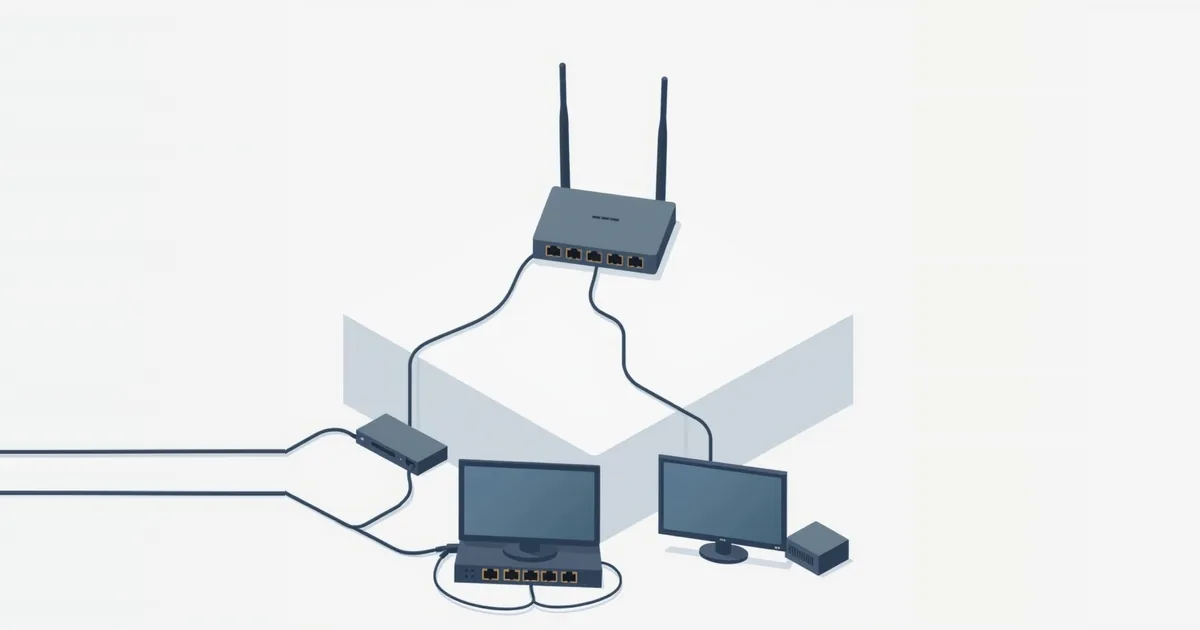
A router and a switch both have a row of Ethernet ports and blinking lights, so they are easy to confuse. Cisco sums up the difference in one line: switches create a network, routers connect networks. At home that means the router links your network to the internet and runs it, while a switch simply gives you more Ethernet ports inside that network.
The Short Answer
| Router | Switch | Hub | |
|---|---|---|---|
| Main job | Connects your home network to the internet | Connects devices inside one network | Connects devices inside one network (old technology) |
| Gives devices IP addresses (DHCP) | Yes | No | No |
| Shares one internet connection (NAT) | Yes | No | No |
| Sends data to | The right network, by IP address | Only the port the data is meant for, by MAC address | Every port at once |
| Wi-Fi | Usually built in | No | No |
| Needed at home | Yes, one | Only if you run out of ports | No — replaced by switches |
What a Router Does
The router sits between your modem and everything else. It takes the single public IP address your provider gives you and shares it among all your devices (network address translation), hands out local addresses such as 192.168.1.x with DHCP, sends traffic between your home network and the internet, and blocks unsolicited connections from outside. Almost all home routers also have a Wi-Fi access point and a small switch with three or four LAN ports built in.
If you are not sure which box in your home does what, see modem vs router vs gateway.
What a Switch Does
A switch connects wired devices within the same network. It learns which device (identified by its MAC address) is on which port, and forwards each piece of data only to the port it is meant for. Devices behind a switch still get their addresses from the router and reach the internet through it; the switch is invisible to them.
Switches come in two kinds:
Unmanaged switches have no settings at all. You plug them in and they work. This is what almost every home needs.
Managed switches add settings such as VLANs, which split the network into separate segments, traffic priority and port monitoring. They are useful in offices and home labs, but not needed to add ports.
Some switches also offer PoE (Power over Ethernet), which powers devices such as security cameras or access points through the network cable.
And a Hub?
A hub is the predecessor of the switch. It does not learn which device is on which port; it simply repeats everything it receives to all ports, so all devices share the bandwidth and see each other’s traffic. Hubs have practically disappeared from stores. Some people still say “hub” when they mean a switch — or the provider’s gateway — so check what a product actually is.
Do You Need a Switch?
You need a switch when your router has too few LAN ports for the devices you want to connect with a cable: a desktop PC, a game console, a TV, a NAS, a smart-home hub or a printer. NETGEAR’s support makes the same recommendation: to add Ethernet ports to a home network, an unmanaged switch is the appropriate device — not a second router.
A second router used just for extra ports is a common mistake. It creates a second network behind the first, known as double NAT, which causes problems with gaming, port forwarding and finding devices on the network.
A switch does not help with weak Wi-Fi or slow internet. For coverage, see mesh Wi-Fi vs extender; for wired connections in distant rooms without new cables, see powerline adapters.
How to Add a Switch to Your Network
- Plug the switch into power.
- Connect one Ethernet cable from a LAN port on the router to any port on the switch. On home switches, every port works for this; there is no special uplink port to find.
- Connect your wired devices to the other ports on the switch.
That is all. The devices get their addresses from the router as if they were plugged into it directly. Do not connect the switch to the router’s Internet (WAN) port, and do not connect the switch to itself or to the router with two cables, which creates a loop that can slow the whole network down.
You can connect a switch to another switch to reach another room, for example a switch at the TV fed by one cable from the router.
Choosing a Switch for Home
Port speed. Choose gigabit (1 Gbps) ports at minimum. Choose 2.5 Gbps ports only if your router, devices and internet plan are faster than gigabit.
Number of ports. Count your wired devices and add one or two spare. Remember that one port is used for the cable to the router: a 5-port switch adds four usable ports.
Unmanaged. For extra ports at home, an unmanaged switch is simpler and cheaper.
PoE only if you want to power cameras or access points through the cable.
Frequently asked questions
Can a switch replace a router?
No. A switch cannot share your internet connection or hand out IP addresses. Without a router, devices behind a switch have no internet access.
Does a network switch slow down internet speed?
No. A gigabit switch adds no noticeable delay. The devices share the single cable to the router, but that link is only busy when several of them transfer a lot of data at once.
Can I connect a switch to my provider’s gateway?
Yes. Connect it to one of the gateway’s LAN ports, just as you would with your own router.
Do I need a managed or unmanaged switch?
For adding Ethernet ports at home, unmanaged. Managed switches are for networks that need VLANs or traffic control.
Is a hub the same as a switch?
No. A hub repeats all data to every port; a switch sends it only to the right port. Hubs are obsolete.