Wire your mesh Wi-Fi satellites back to the main router
Contents
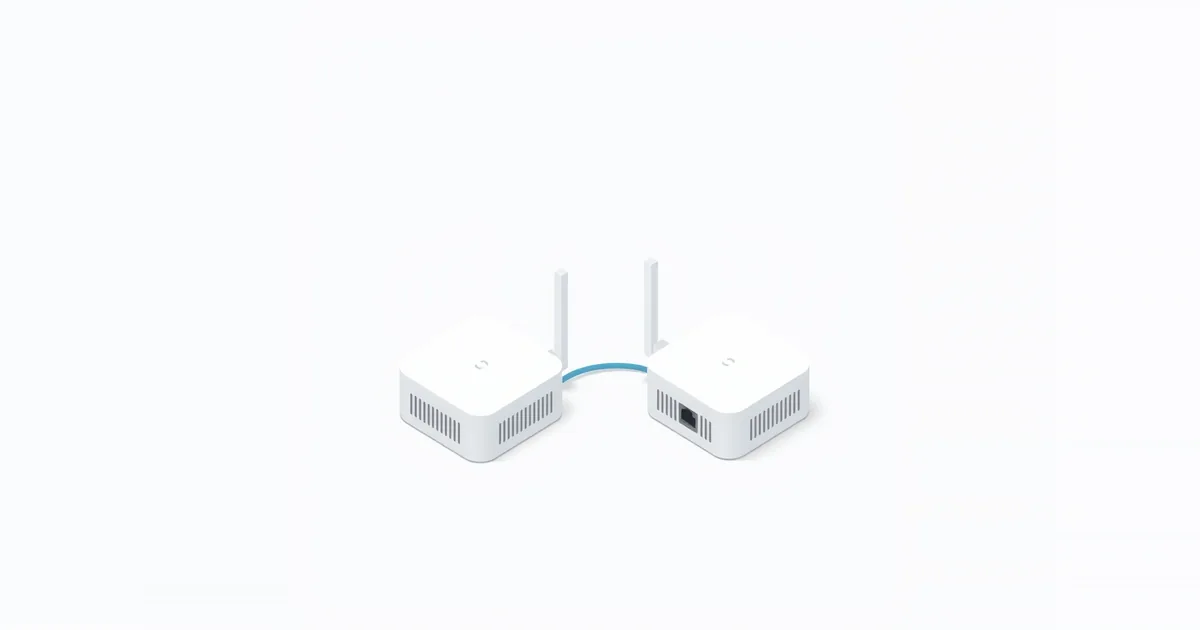
Ethernet backhaul is the wired link between mesh Wi-Fi nodes. If your main mesh unit is the router, run a cable from its LAN side to a supported satellite, directly or through a compatible switch. Phones and laptops can still connect to the satellites over Wi-Fi. For an overview of how they work together, see what mesh Wi-Fi does.
Check the model and the operating mode
Look up the exact model of each satellite. For example, the Nest Wifi point is wireless-only. The Google Wifi point supports wired backhaul, as does a compatible Nest Wifi router used as a satellite. Nest Wifi Pro can mesh only with other Nest Wifi Pro units. Check the maker’s instructions for which Ethernet port to use and when to plug it in. Google’s compatibility table and wiring guide
The instructions below assume your mesh gateway is operating as the router. If the mesh is in access point mode, follow the wiring diagram for that mode. For example, TP-Link allows different wiring in Deco’s router and access point modes. TP-Link’s Deco wiring guide
Put the switch on the LAN side
- Set up the main mesh router and add the satellite to its mesh as directed by the manufacturer.
- For one satellite, run a cable from the main router’s LAN port to the satellite’s supported Ethernet port.
- For several satellites, connect a compatible switch to the main router’s LAN port. Connect the satellites to that switch one at a time. Confirm the connection type in the mesh app if it shows it.
For example, if your gateway has one free LAN port and you want three wired satellites, the switch needs four ports in use. One connects back to the gateway and the other three go to the satellites. A five-port switch leaves one free, assuming it’s compatible with the mesh system. See what a switch adds to your router for help counting the rest of your wired devices. Google’s downstream switch example · eero’s setup and connection check
Need the login details for your router? Look up the default IP address, username and password for your brand.
Find your router’s default loginTest one node with a short cable
If a satellite still shows a wireless connection after you plug it in, bring it next to the gateway and connect it directly with a short, known-good cable. Use the required ports and give the app time to refresh. The result tells you what to check next.
| Test result | Where to look next |
|---|---|
| The node shows wired next to the gateway, but wireless in its usual room | Check the switch, wall jack, and patch cables. Put those pieces back into the path one at a time. |
| The node stays wireless even with the short cable | Recheck the exact satellite model and port, then try another known-good cable before buying a new switch. |
| The app shows wired, but Wi-Fi still feels slow | Check the connection from the phone or laptop to the nearby node. The app’s wired status describes the node’s backhaul. |
Frequently asked questions
Do I have to wire every mesh node?
Many systems can use a mix of wired and wireless satellites. Check your model’s documentation and confirm how each node is connected. TP-Link’s examples of mixed backhaul