Which DNS Server Should You Use? Cloudflare, Google, Quad9 and Others Compared
Contents
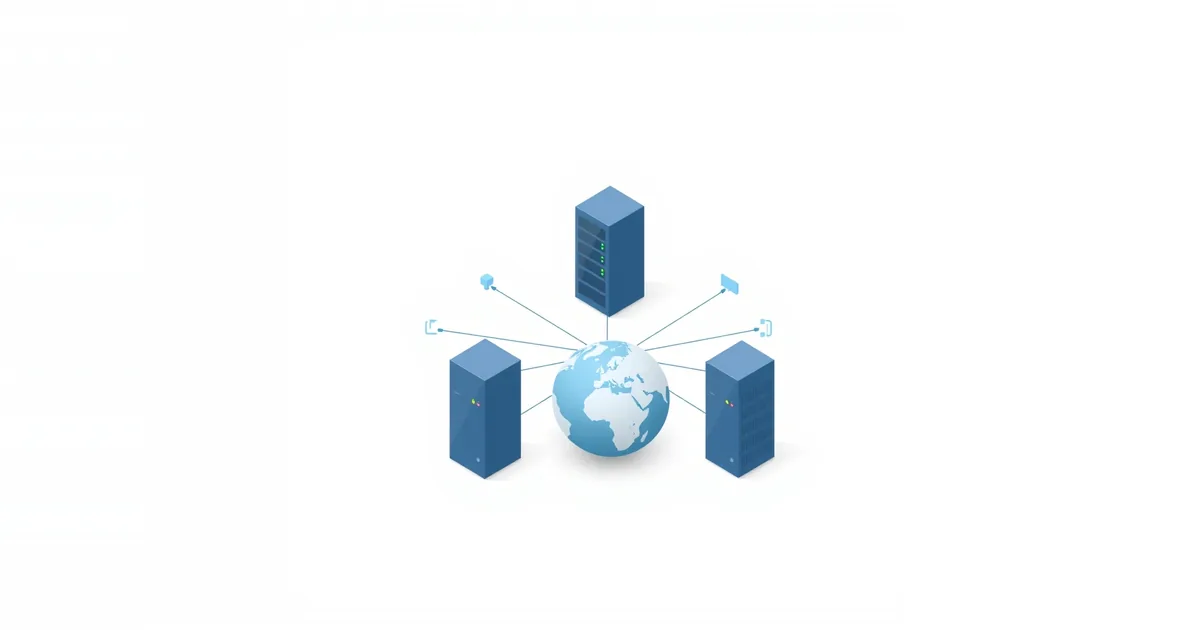
Every time you open a website, your device first asks a DNS server for the site’s IP address. That lookup takes a few milliseconds and you never see it — until the DNS server is slow, down, or blocks something it should not. Choosing a DNS server is a small setting with three real effects: how fast pages start loading, who sees which sites you look up, and whether known malicious or adult sites get blocked before they load.
What a DNS Server Does
DNS translates names like example.com into the numeric addresses computers use. By default, your devices ask your router, and the router asks your internet provider’s DNS servers. You can replace the provider’s servers with a public DNS service, either on the router for every device or on a single device.
A DNS server does not change your download speed. It changes how quickly each new site starts loading, and it can filter what loads at all.
Is Your Provider’s DNS Good Enough?
Often, yes. Provider DNS servers are usually close to you, which makes them fast. Reasons to switch anyway:
- Pages hesitate before loading, or sites sometimes fail to resolve while the connection works; see DNS server not responding.
- You want malware or adult-content filtering for the whole home without installing software.
- You prefer a DNS service with a clear privacy policy and encrypted DNS support.
- Your provider redirects mistyped addresses to its own search or ad pages.
Public DNS Servers Compared
| Service | Addresses (IPv4) | Filtering | Notes |
|---|---|---|---|
| Cloudflare | 1.1.1.1, 1.0.0.1 | None | Focus on speed and privacy; family variants below |
| Cloudflare for Families | 1.1.1.2, 1.0.0.2 (malware) · 1.1.1.3, 1.0.0.3 (malware and adult content) | Built in | Same network, filtering by address |
| Google Public DNS | 8.8.8.8, 8.8.4.4 | None | Large global network |
| Quad9 | 9.9.9.9, 149.112.112.112 | Blocks known malicious domains | Run by a non-profit foundation |
| OpenDNS (Cisco) | 208.67.222.222, 208.67.220.220 | Optional with a free account | FamilyShield: 208.67.222.123, 208.67.220.123 blocks adult content |
| AdGuard DNS | 94.140.14.14, 94.140.15.15 | Blocks ads and trackers | Can break some sites that rely on ad domains |
All of them also offer IPv6 addresses and encrypted DNS (DNS over HTTPS or over TLS); their setup pages list the exact values.
Which One to Choose
For general use and speed: Cloudflare or Google. Both are fast in most places; which one wins depends on your location, so test both.
For extra protection against malware and phishing: Quad9, or Cloudflare’s 1.1.1.2. They refuse to resolve domains known to be malicious, which stops some attacks before a page even loads.
For a family network: Cloudflare 1.1.1.3 or OpenDNS FamilyShield blocks adult content for every device that uses the router. It is a simple first layer; it cannot block individual pages, and children can bypass it with their own DNS, a VPN or mobile data. See how to block websites on your router for the full picture.
For fewer ads: AdGuard DNS removes many ads in apps and browsers alike, at the cost of occasionally breaking a login or a video player.
For gaming: DNS does not affect ping in a game; it only affects how quickly the game finds its servers at startup. Choose the fastest server for you and spend effort on Wi-Fi or a cable instead.
How to Test Which Is Fastest for You
Published rankings measure from data centers, not from your home. To compare on your own connection:
- Open Command Prompt (Windows) or Terminal (Mac).
- Run
nslookup example.com 1.1.1.1, then the same with8.8.8.8,9.9.9.9and your current setup. Repeat a few times with different site names. - On a Mac or Linux,
dig example.com @1.1.1.1shows the query time directly in milliseconds.
Differences of a few milliseconds do not matter. Look for a server that is consistently slow or sometimes fails, and avoid it.
Router or Device: Where to Set It
On the router to cover every device in the home, including TVs and consoles that have no DNS setting. Log in to the router — see what is my router IP — and find DNS under Internet, WAN or DHCP settings. Enter the two addresses of the service you chose and save. Some provider gateways do not allow changing DNS; then set it on devices or use your own router.
On a device to test, or to use a different service on one device. The steps for Windows, Mac, iPhone and Android are in DNS server not responding. On Android, Private DNS with a hostname such as dns.google or one.one.one.one also encrypts the lookups.
Frequently asked questions
Is 1.1.1.1 faster than 8.8.8.8?
It depends on where you are. Both are fast networks; test both with nslookup or dig from your own connection and keep the one that answers more consistently.
Does changing DNS improve internet speed?
It can make sites start loading slightly faster if your provider’s DNS is slow, but it does not change download speed or ping in games.
Which DNS server blocks malware?
Quad9 (9.9.9.9) and Cloudflare 1.1.1.2 block domains known to be malicious. OpenDNS and AdGuard offer filtering too.
Is it safe to use a public DNS server?
Yes, the big public DNS services are reliable. They see which domains you look up, just like your provider’s DNS, so pick the one whose privacy policy you trust.
Should I set DNS on the router or on my computer?
On the router for the whole home, on a single device to test or when the router does not allow changes.
Sources
- Get Started — Google Public DNS — Google for Developers
- Set up Cloudflare 1.1.1.1 resolver — Cloudflare Docs
- Service Addresses & Features — Quad9