IP Address Conflict on Windows, Mac or Your Home Network: Causes and Fixes
Contents
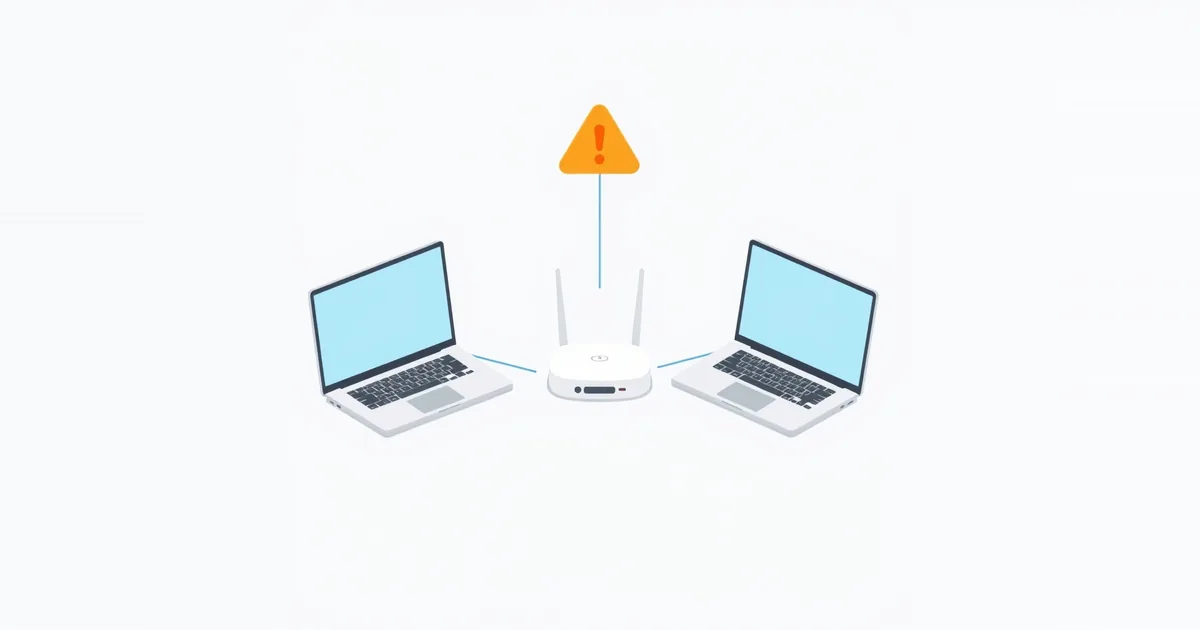
“Windows has detected an IP address conflict.” “Another device on the network is using your computer’s IP address.” Both messages mean the same thing: two devices on your network are trying to use one address, and at least one of them is now cut off. On a home network the cause is almost always a manually set address that overlaps with the router’s automatic range, and the fix takes a minute. Here is how to clear it and keep it from returning.
What an IP Address Conflict Is
Every device on your local network needs its own private IP address, such as 192.168.1.23. Normally the router hands these out automatically through DHCP — see what is DHCP — and keeps track of which address went to which device, so duplicates do not happen.
A conflict occurs when a second device ends up with an address that is already taken. Devices check for this: before using an address, they ask the network whether anyone else already has it (the mechanism is described in RFC 5227, IPv4 Address Conflict Detection). When the answer is yes, the operating system shows a warning and the device usually loses its network connection — or the other device does. You will see “no internet” or Wi-Fi connected but no internet on one of the two.
Why It Happens on a Home Network
Since the router assigns addresses itself, a conflict at home nearly always has an outside cause:
- A static IP set by hand inside the DHCP range. Someone typed a fixed address into a printer, camera, NAS or PC. Later the router gave the same address to a phone. This is the most common cause; see what is a static IP address.
- Two DHCP servers. A second router or an extender in router mode hands out addresses from the same range as the main one — for example after adding your own router behind the provider’s. See how to set up a router as an access point and double NAT.
- A device returning after a long sleep with an old address that the router has since given to someone else.
- A router replaced or reset while devices kept their old manual settings; see how to factory reset a router.
Quick Fix: Get a New Address
The fastest fix is to make the affected device ask the router for a fresh address. Restarting the device or turning Wi-Fi off and on usually does it. If not, do it directly.
Windows: open Command Prompt and run:
ipconfig /release
ipconfig /renew
Microsoft describes /release as sending a DHCPRELEASE message to the DHCP server to give up the current address, and /renew as renewing the DHCP configuration. Both work only when the adapter is set to obtain an IP address automatically. ipconfig /all shows the address you got.
Mac: System Settings → Network → select Wi-Fi or Ethernet → Details → TCP/IP → Renew DHCP Lease. Apple notes that this option is available when the connection uses DHCP.
Phones, consoles, TVs: turn Wi-Fi off and on, or forget the network and reconnect.
If the warning keeps coming back, restart the router. It rebuilds its list of who has which address. If that does not help either, one device has a fixed address — go to the next step.
Find the Device Causing It
Open your router’s admin page — usually 192.168.1.1 or 192.168.0.1 — and look at the list of DHCP clients or connected devices. Compare it with the address in the warning:
- Note the conflicting address shown in the error, or the address of the device that lost its connection.
- Find which devices in the router list have that address. A device with a fixed address may not appear in the DHCP list at all — that absence is itself a clue.
- Check devices that often get fixed addresses: printers, network storage, IP cameras, smart-home hubs, game consoles with manual network settings, and PCs used for port forwarding.
For more ways to see what is on your network, see who is connected to my Wi-Fi.
Once you find it, set that device back to automatic (DHCP), or move its fixed address outside the router’s DHCP range as described below.
Stop It From Coming Back
The clean way to give a device a permanent address is a DHCP reservation (some routers call it address reservation or static lease). The router then always hands that device the same address, and never gives it to anyone else. The device itself stays on automatic settings. Reservations are tied to the device’s MAC address, so turn off the private Wi-Fi address for your home network on phones and laptops that need one.
If a device must have an address typed in by hand, pick one outside the DHCP range. Many routers hand out addresses from something like .100 to .199 or .2 to .254; the range is shown in the router’s LAN or DHCP settings. If your router uses .100–.199, a printer at .50 can never collide with a phone.
Finally, make sure only one device on the network runs DHCP. If you have a second router for better coverage, switch it to access-point or bridge mode, or turn off its DHCP server.
Frequently asked questions
What causes an IP address conflict?
Two devices end up with the same IP address on one network. At home it is usually a device with a manually set address inside the router’s automatic range, or a second router also handing out addresses.
How do I fix an IP address conflict on Windows?
Run ipconfig /release and then ipconfig /renew in Command Prompt, or restart the PC and the router. If it returns, find the device with a fixed address that overlaps.
Can an IP address conflict happen with my public IP?
Not on your home network. The conflict is between private addresses inside your network. Your public IP is assigned by your provider and shared by all your devices.
Is an IP address conflict a sign of hacking?
Rarely. Almost always it is a configuration mistake. If you see unknown devices in the router list, change the Wi-Fi password and see how to secure your home network.
Should I use a static IP to avoid conflicts?
Use a DHCP reservation in the router instead. It gives the device a fixed address without the risk of overlapping with the automatic range.
Sources
- ipconfig — Microsoft Learn
- Change TCP/IP settings on Mac — Apple Support
- RFC 5227: IPv4 Address Conflict Detection — IETF