How to Set Up a Wi-Fi Extender, Where to Place It and How to Fix One That Drops
Contents
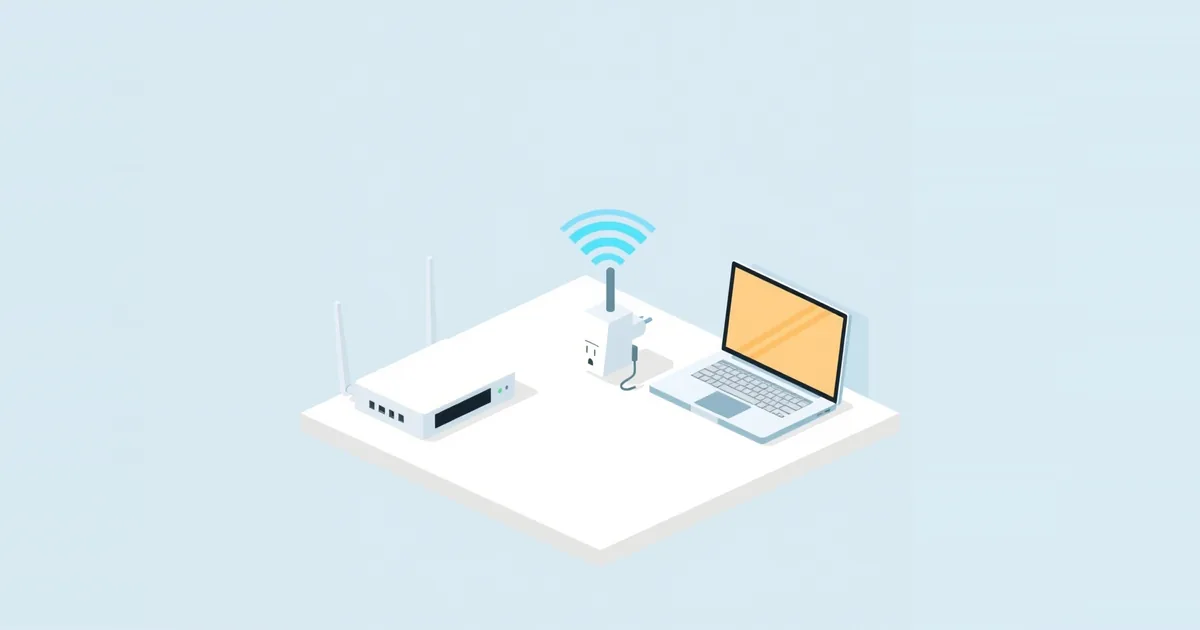
A Wi-Fi extender takes your router’s signal and repeats it into a room the router cannot reach well. Setting one up takes ten minutes; putting it in the right spot is what decides whether it actually helps. Below are the three common setup methods, how to find the right spot, and what to do if the extender keeps losing the connection.
Before You Start
You need your Wi-Fi name and password, and the extender plugged in next to the router for the setup. Setting it up close by avoids connection failures; you move it to its final spot afterwards. Check whether your router has a WPS button — it is the quickest method, but only if WPS is enabled on the router.
If you have not decided yet between an extender and a mesh system, see mesh Wi-Fi vs extender first.
Method 1: The WPS Button
- Plug in the extender near the router and wait until its power light is steady.
- Press the WPS button on the router.
- Within two minutes, press the WPS button on the extender.
- Wait until the extender’s signal or WPS light shows a connection. For dual-band routers, some extenders need the WPS step once for each band; the manual says so.
The extender copies the router’s Wi-Fi settings automatically. WPS has known security weaknesses in its PIN mode, so turn WPS off on the router again when you are done; see what is WPS on a router.
Method 2: App or Setup Page
If your router has no WPS, or you prefer to see what you are doing:
- Plug in the extender near the router and connect your phone or computer to the extender’s own setup network, named after the brand (for example
TP-Link_ExtenderorNETGEAR_EXT). - Open the brand’s app — Tether or Deco for TP-Link, Nighthawk for NETGEAR — or the setup page in a browser: tplinkrepeater.net for TP-Link,
mywifiext.netfor older NETGEAR extenders, or the address on the label for other brands. - Create a login password for the extender if asked.
- Choose your home network from the list and enter its Wi-Fi password. Repeat for the 5 GHz band if the extender asks.
- Choose the extended network name (see below) and finish. The extender restarts and connects.
The setup page works only while you are connected to the extender. If it does not open, check that you joined the extender’s network and type the address into the address bar rather than a search box.
Where to Put the Extender
This is the step that matters most. The extender can only repeat the signal it receives, so it must sit where the router’s signal is still good — roughly halfway between the router and the area with weak Wi-Fi, not inside the dead zone.
Most extenders have a signal or link light that helps:
- Green or blue usually means a good connection to the router.
- Amber, orange or red usually means the signal is weak or the extender is too far away; move it one outlet closer to the router.
Light colors differ between brands, so check the manual. Then test where you actually use Wi-Fi. A speed test next to the extender and in the target room — as described in why is my Wi-Fi so slow — shows whether the new spot is an improvement. Keep the extender out of cabinets and away from microwaves, large mirrors and metal furniture.
Same Network Name or a Separate One?
Many extenders offer to use the router’s network name or to add a suffix such as _EXT.
A separate name lets you choose which device uses the extender, and makes it obvious when a device is connected through it. The downside is that phones stay on one network until its signal is very weak instead of switching to the stronger one.
The same name is more convenient and lets devices roam, but with basic extenders the switching is not always smooth, and you cannot easily tell which source a device uses. Extenders that pair with a router of the same brand, such as TP-Link OneMesh, handle the same name much better.
If devices in the far room behave oddly with the same name, try a separate one.
When the Extender Keeps Dropping
Move it closer to the router. The most common cause is a weak link between the router and the extender. One outlet closer often fixes it.
Avoid power strips and smart plugs. Plug the extender directly into a wall outlet; some power strips and surge protectors weaken the connection or cut power.
Update the firmware of both the extender and the router; see how to update router firmware.
Re-run the setup after router changes. If you changed the Wi-Fi password, security mode or router, the extender still uses the old settings and cannot connect. Reset it and set it up again.
Check the router’s channel. Some routers change channel automatically; older extenders sometimes fail to follow. Setting a fixed channel on the router can help; see the best Wi-Fi channel.
If the extender still drops and the dead zone is large, a mesh system or an access point on a cable is the more reliable fix; see what is mesh Wi-Fi.
Frequently asked questions
Where is the best place for a Wi-Fi extender?
About halfway between the router and the weak area, where the router’s signal is still good. Use the extender’s signal light to check.
Does a Wi-Fi extender need to be near the router?
Only during setup. Afterwards it should be farther away, but still within good range of the router.
Can I set up a Wi-Fi extender without WPS?
Yes. Use the manufacturer’s app or the extender’s setup page in a browser while connected to the extender’s own network.
Why does my Wi-Fi extender keep losing internet?
Usually the extender is too far from the router, the router’s settings changed, or the extender is plugged into a power strip. Move it closer, re-run the setup and plug it directly into the wall.
Will an extender work with any router?
Yes, standard extenders work with any Wi-Fi router. Pairing features such as TP-Link OneMesh need a compatible router from the same brand.