AirPlay Not Working: Why Your TV or Speaker Doesn’t Show Up, and How to Fix It
Contents
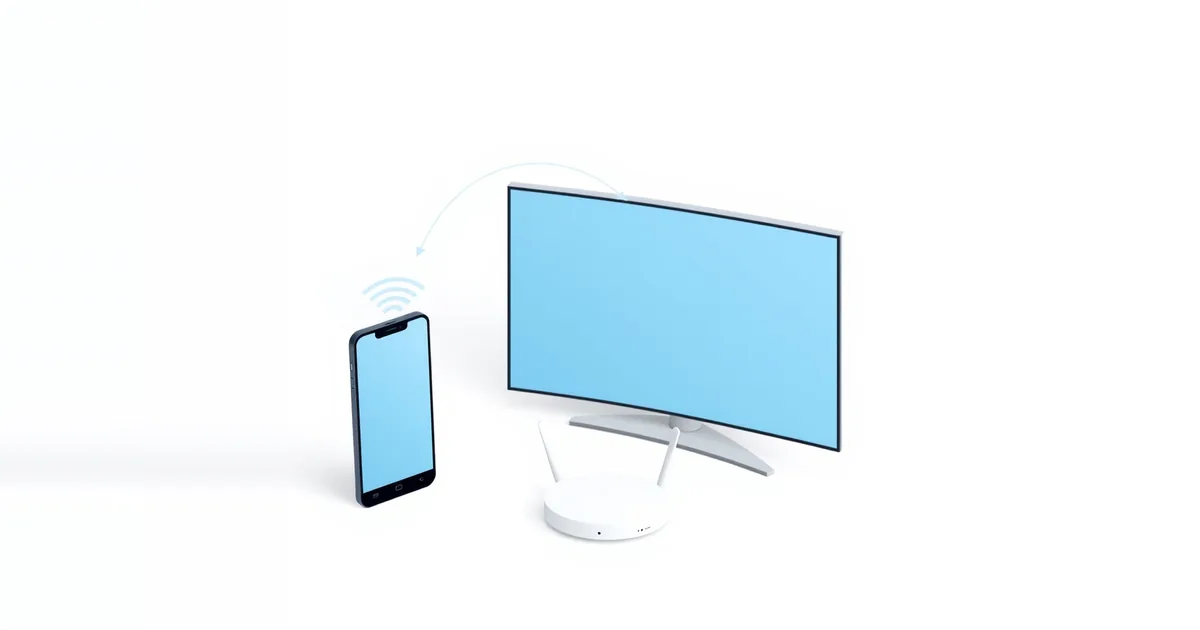
You tap the AirPlay icon and your TV is not in the list, or it is there but the picture never appears. AirPlay depends on your home network more than most people realise: the phone has to find the TV on the network first, and some router settings quietly stop that from happening. This guide starts with Apple’s own quick checks, then covers the network causes that are behind most cases that the quick checks don’t fix.
Quick Checks First
Apple’s troubleshooting page lists these steps — after each one, try AirPlay again:
- Turn both devices on and keep them near each other.
- Update both devices to the latest software and make sure they are on the same Wi-Fi network.
- Allow AirPlay receiving on the device you are streaming to. On a Mac: System Settings → General → AirDrop & Handoff. On iPhone: Settings → General → AirPlay & Continuity.
- Restart both devices.
- Check the Home app. If the TV or speaker is set up in Home, open Home → More → Home Settings → Speakers & TV and make sure AirPlay is not restricted.
- If an Apple TV asks for a password, check its AirPlay password and content restriction settings.
Also make sure the TV itself supports AirPlay — many smart TVs do, but not every model — and that AirPlay is turned on in the TV’s own settings.
Same Network, Same Subnet
“Same Wi-Fi network” is the step people most often get wrong without noticing. AirPlay finds devices with Bonjour, which works by sending multicast announcements on the local network. Apple’s network deployment guide explains that these announcements do not cross from one subnet to another by default, so the TV and the phone need to be on the same IP subnet.
That breaks in a few common situations:
- The phone is on the guest network and the TV on the main one. Guest Wi-Fi is designed to keep devices apart — see guest Wi-Fi network.
- The TV is connected to a different router — for example, a second router or old ISP gateway set up as a separate network instead of an access point. Check that both devices have addresses in the same range, like 192.168.1.x; if the TV sits behind a second router, set that router up as an access point.
- Mesh or extender with its own network name. Some extenders create a second network; connect both devices to the same one.
- VPN on the phone or Mac. A VPN can route traffic away from the local network. Turn it off and try again.
On Apple TV there is also a fallback: devices can find it over Bluetooth, and Apple TV can use peer-to-peer AirPlay (a temporary direct Wi-Fi link) when access is set to Everyone. That is why AirPlay to an Apple TV sometimes works even when the network is the problem — and why it can be slow or unstable in that case.
Router Settings That Block AirPlay
If both devices are on the same network and still can’t see each other, look in the router’s admin page — usually 192.168.1.1 or 192.168.0.1:
- AP isolation / client isolation. This setting stops Wi-Fi devices from talking to each other. It is meant for public hotspots and guest networks; on your main network, turn it off.
- Multicast or IGMP settings. Some routers have options that filter multicast traffic on Wi-Fi. If AirPlay stopped working after a firmware update or settings change, look for options named multicast, IGMP snooping or mDNS and try the defaults.
- Separate networks for 2.4 GHz and 5 GHz. Usually these are the same subnet and AirPlay still works between them, but on some routers the bands are separated. Put both devices on the same band to rule it out — see 2.4 GHz vs 5 GHz.
- VLANs. If you have split your network into VLANs, the TV and the phones need to be in the same one, or you need an mDNS (Bonjour) gateway between them.
Firewalls matter too: Apple’s guide notes that even when an Apple TV is found over Bluetooth, the source device still has to reach it without a firewall blocking the way.
Apple TV and Smart TV Settings
On Apple TV 4K, open Settings → AirPlay and Apple Home and check that AirPlay is on. Under Allow Access you can choose:
- Everyone — any nearby device can stream;
- Anyone on the Same Network — only devices on your home network;
- Only People Sharing This Home — only people added to your home in the Home app;
- Require Password — anyone streaming must enter the password you set.
If a family member can’t see the Apple TV while you can, “Only People Sharing This Home” is the likely reason. On a smart TV, look for AirPlay in the TV’s settings menu (often under General or Connection) and make sure it is on and does not require a code you have not entered.
No Sound or Music Stops
If you see video but don’t hear audio, Apple’s first suggestion is simple: check that the volume is up and not muted on both the iPhone or Mac and the TV or receiver. A soundbar or AV receiver may also be set to the wrong input.
If music stops by itself, Apple explains that the Home app may be using a HomePod, Apple TV or AirPlay speaker as the main audio source — and using Siri or doing something else on that device can stop playback everywhere. Start playback again from your phone.
Stuttering and Lag
AirPlay streams over Wi-Fi, so a weak signal shows up as stutter, drops or a blurry picture. Apple recommends connecting Apple TV to the router with Ethernet if you can, and keeping the source device within about 25–30 feet with few obstructions. A TV in a cabinet or behind a wall from the router is a common cause.
If Ethernet is not an option, improve the Wi-Fi: move the router or add a mesh node near the TV, and check for Wi-Fi interference. For a TV that keeps losing Wi-Fi altogether, see smart TV not connecting to Wi-Fi.
Frequently asked questions
Why is my TV not showing up in AirPlay?
Usually the TV and phone are not on the same network or subnet — for example, one is on guest Wi-Fi — or AirPlay is turned off on the TV. Also check the router for AP or client isolation.
Does AirPlay need the same Wi-Fi network?
For most smart TVs and speakers, yes: both devices must be on the same local network and subnet. Apple TV can also use peer-to-peer AirPlay without a shared network when access is set to Everyone.
Why does AirPlay connect but not play?
Check the volume and mute on both devices and the input on your soundbar or receiver, then restart both devices and try again.
Can my router block AirPlay?
Yes. AP isolation, a guest network, VLANs or multicast filtering can stop devices from finding each other. Turn off isolation on your main network and keep both devices on the same network.
How do I make AirPlay less laggy?
Connect the Apple TV with Ethernet, keep devices close with few walls between them, and improve Wi-Fi near the TV.
Sources
- If screen mirroring or streaming isn’t working on your AirPlay-compatible device — Apple Support
- Use AirPlay with Apple devices — Apple Platform Deployment
- Adjust settings for AirPlay and Apple Home on Apple TV 4K — Apple TV User Guide