Wi-Fi Interference: Common Causes at Home and How to Reduce Them
Contents
Wi-Fi shares the air with your neighbours’ networks, Bluetooth gadgets and a surprising number of household devices. When something else transmits on the same frequencies, your Wi-Fi has to wait, repeat data or drop the connection. Unlike a weak signal, interference often comes and goes — which is why it is so confusing. Here is how to recognise it and what actually helps.
Interference vs Weak Signal
Two different problems produce similar symptoms:
Weak signal means too little of your router’s signal reaches the device — because of distance, walls, floors, metal or water in the way. It is constant: the far room is always slow. See how to boost your Wi-Fi signal.
Interference means something else is transmitting on the same frequencies. The signal may be strong, but the channel is busy or noisy. It is often intermittent: the connection drops when the microwave runs, in the evening when neighbours stream, or when a particular device is switched on.
Most interference happens on the 2.4 GHz band, which is narrow, crowded and shared with many non-Wi-Fi devices. 5 GHz and 6 GHz are much quieter; see 2.4 GHz vs 5 GHz.
Symptoms
Apple lists the typical signs of wireless interference:
- devices do not connect or stay connected;
- the connection is slow and the signal strength is low;
- Bluetooth audio skips, stutters or crackles;
- a wireless mouse or trackpad pointer moves erratically.
If the problems follow a pattern — at the same time of day, in one room, or when one appliance is on — interference is the likely cause.
Common Sources of Interference
Other Wi-Fi networks. In apartment buildings this is the biggest source. Networks on the same or overlapping channels share airtime; see the neighbours section below.
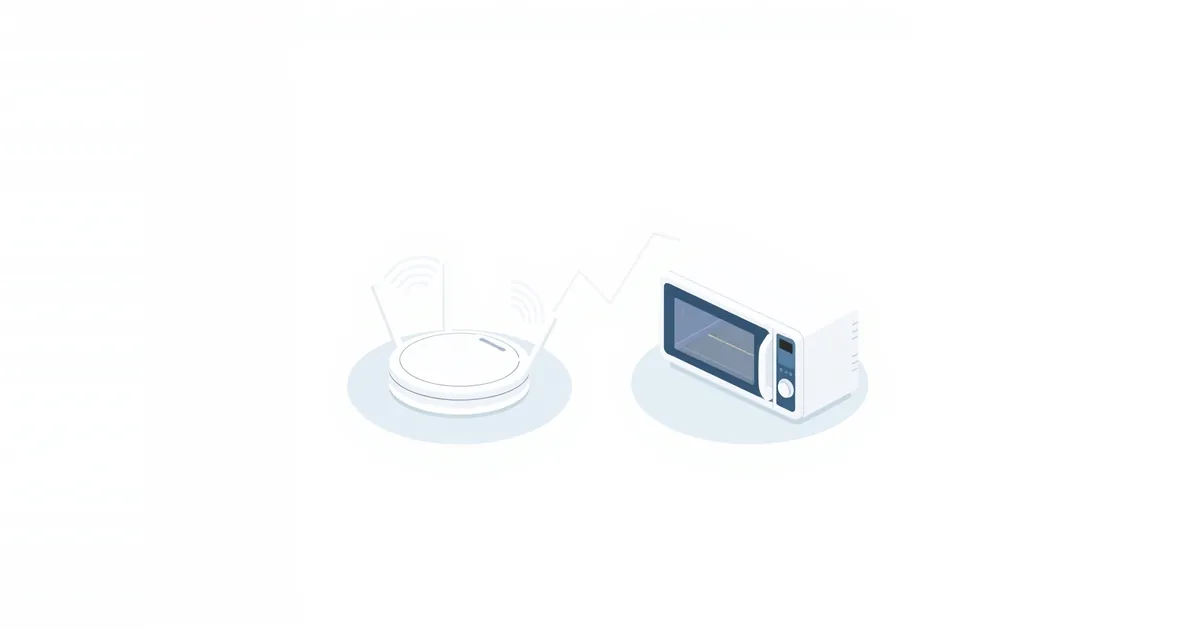
Microwave ovens. They operate around 2.45 GHz, in the middle of the 2.4 GHz Wi-Fi band. A running microwave can slow or drop 2.4 GHz connections nearby. Apple names microwave ovens among the common sources.
Bluetooth devices. Bluetooth also uses 2.4 GHz. Apple notes that both Bluetooth and Wi-Fi share this band, and suggests moving Wi-Fi devices to 5 GHz.
Cordless phones, baby monitors, wireless cameras. Older models using 2.4 GHz (or 5.8 GHz) can clash with Wi-Fi. Apple lists cordless phones and wireless video cameras.
USB 3 and Thunderbolt 3 devices. Apple warns that USB 3 and Thunderbolt 3 devices and hubs can interfere with nearby wireless devices — the reason a USB 3 hard drive or hub next to a laptop can make Wi-Fi or a wireless mouse misbehave.
Power cables and fluorescent lights. Apple lists these too. Keep the router away from bundles of power cables and power supplies.
Things that block rather than interfere: thick walls, concrete, metal cabinets, large mirrors, aquariums and appliances weaken the signal. Moving the router or the device usually fixes that.
How to Find the Culprit
Watch for patterns. Does the drop happen when the microwave runs, a game controller is on, or the neighbours are home in the evening?
Switch suspects off one at a time. Turn off the microwave, unplug a cordless phone base or baby monitor, disconnect a USB 3 hub, and test again.
Run a speed test next to the router and in the problem spot, at a quiet time and when the problem occurs. A big difference at the same spot and distance points to interference rather than range.
Use a Wi-Fi scanner. Analyzer apps show nearby networks with their channels and signal levels. Many networks on your channel mean co-channel interference. See how to check Wi-Fi signal strength and the best Wi-Fi channel.
How to Reduce Interference
Move devices to 5 GHz or 6 GHz. The single most effective step. Phones, laptops, TVs and consoles near the router should use the faster bands; keep 2.4 GHz for distant devices and smart gadgets.
Change the 2.4 GHz channel. Use channel 1, 6 or 11 — the only ones that do not overlap — or let the router choose. Apple notes that most routers scan for the least busy channel at startup or reset. See the best Wi-Fi channel.
Keep 2.4 GHz at 20 MHz width. Apple recommends 20 MHz channel width for 2.4 GHz to avoid performance and reliability problems near other networks and 2.4 GHz devices, including Bluetooth. Wider settings on 2.4 GHz overlap more neighbours.
Reposition. Keep the router away from the microwave, cordless phone bases, power cables and metal; raise it and place it centrally. Bring your device closer to the router, as Apple suggests.
Shield USB 3 devices. Use good, shielded cables and keep USB 3 hubs and drives away from laptops and wireless receivers.
Reduce the number of busy devices on the same band, especially those that stream constantly.
Upgrade old 2.4 GHz gadgets — cordless phones and baby monitors on DECT, which does not use the Wi-Fi bands in the US, avoid the clash entirely.
Use a cable for stationary devices. Ethernet is immune to wireless interference; see Ethernet vs Wi-Fi.
Interference From Neighbours’ Networks
You cannot switch off neighbouring routers, but you can share the air better:
- pick the least crowded channel on 2.4 GHz, and leave 5 GHz on automatic;
- prefer 5 GHz, whose signals cross walls less — that is an advantage in apartments;
- use 6 GHz with Wi-Fi 6E or Wi-Fi 7 devices, where few neighbours are yet; see Wi-Fi 6 vs Wi-Fi 7;
- avoid maximum transmit power on many routers; a moderate setting reduces overlap with neighbours without hurting your own coverage much;
- if one router cannot cover your home without blasting, a mesh system with several units at lower power often works better; see what is mesh Wi-Fi.
Frequently asked questions
What causes Wi-Fi interference?
Mainly other Wi-Fi networks on the same channel, and devices that use the 2.4 GHz band: microwave ovens, Bluetooth, older cordless phones and baby monitors, and wireless cameras. USB 3 devices and power cables can also interfere.
Can a microwave interfere with Wi-Fi?
Yes, with 2.4 GHz Wi-Fi nearby while it is running. Use 5 GHz or move the router away from the kitchen.
How do I check for Wi-Fi interference?
Look for patterns, switch suspected devices off one at a time, compare speed tests, and use a Wi-Fi analyzer app to see how many networks share your channel.
Does 5 GHz have less interference?
Yes. It has more channels, fewer non-Wi-Fi devices and shorter range, so fewer neighbouring networks reach you.
Can my neighbours’ Wi-Fi slow down mine?
Yes, if their networks use the same or overlapping channels. Choosing a quieter channel and using 5 GHz or 6 GHz reduces the effect.
Sources
- Resolve Wi-Fi and Bluetooth issues caused by wireless interference — Apple Support
- Recommended settings for Wi-Fi routers and access points — Apple Support
- Items that can interfere with a Wi-Fi network — Apple AirPort Utility User Guide