How to Set Up a Guest Wi-Fi Network on Your Router — and What It Protects
Contents
When a friend asks for the Wi-Fi password, you hand over more than internet access. Anyone on your main network can see your shared folders and printer, try to open your router’s settings page and reach cameras and other gadgets that were never designed to face strangers. A guest network solves this in two minutes: visitors get the internet, and nothing else.
What a Guest Network Does
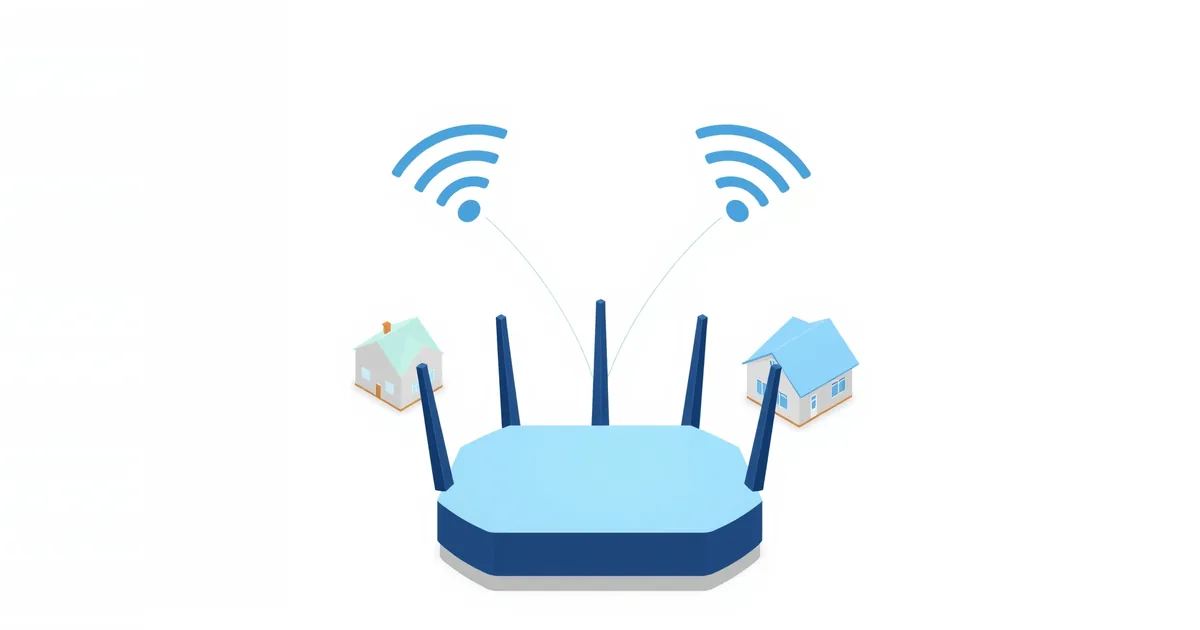
A guest network is a second Wi-Fi network broadcast by the same router, with its own name and password. Devices on it can reach the internet but, with the usual settings, cannot see devices on your main network, and often not each other either.
That protects you from three things:
- Curious or infected guest devices cannot browse your shared folders, NAS or printer, or attack your computers.
- Your main password stays private. You never have to change it after a party or a tenant moving out — just change or switch off the guest network.
- Settings stay out of reach. Most routers block guests from opening the router’s admin page.
How to Turn It On
Every modern router has a guest network option; the name and place differ by brand.
- Log in to the router in a browser or in its app. If you do not know the address, see what is my router IP.
- Look for Guest Network, usually under Wireless or Advanced; on some routers it sits on the home screen of the app. Provider gateways from Xfinity, AT&T and others have it in their app as well.
- Turn it on for 2.4 GHz, 5 GHz or both. 2.4 GHz reaches further, which helps guests in a garden or a guest room.
- Give it a recognizable name, such as “Smith Guest”, and set a password. Our Wi-Fi password generator has an easy-to-type mode for exactly this.
- Choose WPA2/WPA3 security, the same as your main network; see WPA2 vs WPA3.
- Save. The guest network appears within a minute.
Settings That Matter
Access to the local network. Many routers have an option such as “Allow guests to see each other and access my local network”. Leave it off; that isolation is the whole point.
Client isolation. Some routers can also stop guest devices from seeing each other. Turn it on for a home office or rental where guests do not know each other.
Bandwidth limits. Some routers let you cap the guest network’s speed so a guest’s downloads do not slow down your video calls.
Schedule or time limit. Several routers can switch the guest network off at night or after a set number of hours. It is a tidy way to make sure an old password stops working.
Hide or show the name. Keep the guest network visible; hiding names adds little security and makes connecting harder for guests.
Should Smart-Home Devices Go on the Guest Network?
Smart plugs, bulbs, cameras and TV boxes are among the least maintained devices in a home: many never get updates. Putting them on the guest network keeps a compromised gadget away from your computers and phones, and many security guides recommend it.
There is a catch. Devices on the guest network are isolated from your phone, so apps that find gadgets over the local network — casting to a TV or speaker, setting up a printer, some smart-home hubs — may stop working. A practical approach:
- Cloud-controlled devices (most smart plugs, bulbs and cameras controlled through the maker’s app over the internet) usually work fine on the guest network.
- Devices you cast to or control locally (Chromecast, AirPlay speakers, printers, local smart-home hubs) belong on the main network.
- Older 2.4 GHz-only gadgets that fail with WPA3 can use a WPA2 guest network while your main network uses WPA3.
If you are unsure which devices are on your network at all, check the router’s device list; who is connected to my Wi-Fi and the MAC address lookup help identify them.
Sharing It With Guests
Rather than spelling out a password, print a QR code: our Wi-Fi QR code generator turns the guest network name and password into a code that phones join by scanning. Stick it on the fridge or in the guest room. When you change the guest password, print a new one.
Frequently asked questions
Is a guest Wi-Fi network safe?
It is safer for you than sharing your main network, because guests cannot reach your devices. For guests, it is as safe as any password-protected Wi-Fi.
Does a guest network slow down my main Wi-Fi?
Only by the traffic guests generate: both networks share the same router and internet connection. A bandwidth limit for guests keeps your own devices fast.
Can guests see my devices on a guest network?
Not with the usual settings. Make sure the option that allows guests to access the local network is turned off.
Should I put smart-home devices on the guest network?
Cloud-controlled gadgets work well there and are better isolated from your computers. Devices you cast to or control locally need the main network.
Do I need a password on the guest network?
Yes. An open guest network lets anyone in range use your internet connection, and their activity appears under your IP address.
Sources
- Recommended settings for Wi-Fi routers and access points — Apple Support
- Guest Networks: Your Home Security Essential — NETGEAR