“DNS Server Not Responding”: What It Means and How to Fix It
Contents
Windows Network Diagnostics reports “The DNS server isn’t responding”, or Chrome shows DNS_PROBE_FINISHED_NO_INTERNET, and no website opens. The good news: this error is usually not a broken connection but a broken address book, and it is one of the easier network problems to fix.
What the Error Means
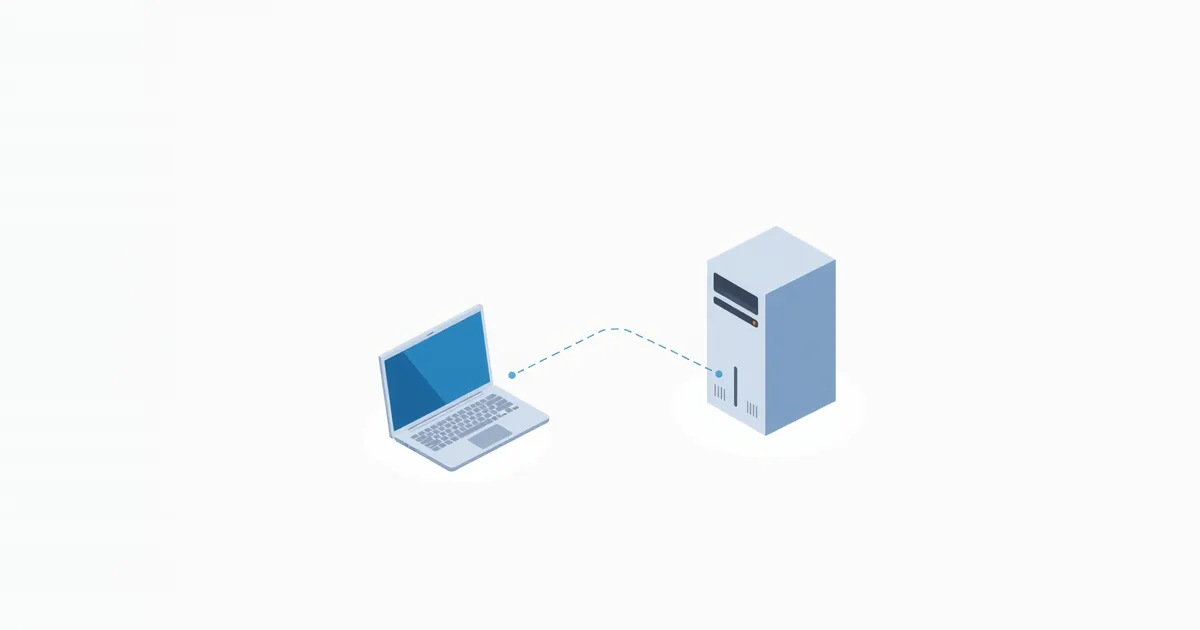
Computers reach websites by IP address, but people type names like example.com. A DNS server translates one into the other. Your device asks a DNS server — normally your router, which forwards the question to your provider’s DNS — and waits for the answer. When no answer comes, nothing that needs a name works, even if the internet connection itself is fine.
So “DNS server not responding” can mean three different things: the DNS server is down or overloaded, the router’s DNS forwarding has stalled, or something on your device (a wrong setting, a VPN, security software) stops the question from getting through.
Two-Minute Test: Is It Really DNS?
Open Command Prompt on Windows or Terminal on a Mac and run two commands:
ping 8.8.8.8— this reaches a well-known server by its IP address, without DNS.nslookup example.com— this asks your DNS server to translate a name.
ping 8.8.8.8 | nslookup example.com | What it means |
|---|---|---|
| Replies | Fails or times out | DNS is the problem. Follow the fixes below. |
| No replies | Fails | There is no internet connection at all. See Wi-Fi connected but no internet. |
| Replies | Works | DNS works now; the problem was temporary or is limited to the browser. |
If you cannot use the command line, try opening a site by its IP address. If that works while names do not, DNS is the culprit.
Quick Fixes
Restart the router and the device. Turn off the router for 30 seconds; if your provider’s modem is a separate box, restart that first. The router’s DNS forwarder is a small program that sometimes hangs, and a restart is the fastest cure.
Flush the DNS cache. Your device remembers recent answers, including bad ones. On Windows, run ipconfig /flushdns in Command Prompt. On a Mac, run sudo dscacheutil -flushcache; sudo killall -HUP mDNSResponder in Terminal and enter your password. Browsers and phones keep their own cache too; see how to flush the DNS cache for every system.
Turn off the VPN and check security software. VPN apps and some antivirus programs replace your DNS settings or filter DNS traffic. Disconnect the VPN, or pause the security software for a moment, and test again. If that fixes it, look for a DNS or web protection setting in that program.
Try another device. If every phone and computer in the house has the same problem, the router or the provider is at fault. If only one does, the fix is on that device.
Switch to a Public DNS Server on Your Device
When your provider’s DNS is slow or down, you can use a public DNS service instead. The two most widely used are:
- Google Public DNS:
8.8.8.8and8.8.4.4 - Cloudflare:
1.1.1.1and1.0.0.1
Enter one address as the preferred and the other as the alternate DNS server.
Windows 11: Settings → Network & internet → Wi-Fi or Ethernet → Hardware properties → DNS server assignment → Edit → Manual, turn on IPv4 and enter the two addresses.
Mac: System Settings → Network → Wi-Fi (or Ethernet) → Details → DNS, remove the existing entries with the minus button and add the new ones with plus.
iPhone and iPad: Settings → Wi-Fi → tap ⓘ next to your network → Configure DNS → Manual, then add the servers.
Android: Settings → Network & internet → Private DNS, choose Private DNS provider hostname and enter dns.google or one.one.one.one. Menu names differ slightly between manufacturers.
A change on one device fixes only that device and is the quickest way to prove that DNS was the problem.
Change DNS on the Router for the Whole Home
To fix every device at once, change the DNS servers in the router. Log in to its settings page — see what is my router IP if you do not know the address — and look for DNS under Internet, WAN or DHCP settings. Replace the automatic provider DNS with the public servers above and save.
Some provider gateways do not let you change DNS. In that case, set DNS on the devices that matter, or put the gateway in bridge mode and use your own router; modem vs router vs gateway explains how.
If It Still Does Not Work
Update the network driver or firmware. On Windows, install the latest network adapter driver from the computer maker. On the router, check for a firmware update; DNS bugs in old firmware are not rare.
Reset network settings on the device. On Windows: Settings → Network & internet → Advanced network settings → Network reset. This removes saved networks and may require reinstalling VPN software, so use it as a last step.
Check whether it is the provider. If DNS fails on every device even with public DNS servers set on the router, and ping 8.8.8.8 also fails from time to time, the provider’s line is unstable. Note the times and call them.
Check for unwanted DNS changes. If DNS servers you never set appear on the router or devices, someone may have changed them; that is how some malware redirects traffic. Change the router’s admin password — see how to change your router admin password — and set DNS back to automatic or to a public server you trust.
Frequently asked questions
What does “DNS server not responding” mean?
Your device asked a DNS server to translate a website name into an address and got no answer. The internet connection may be fine; names just cannot be resolved.
Is it safe to use 8.8.8.8 or 1.1.1.1?
Yes. Google Public DNS and Cloudflare’s 1.1.1.1 are widely used public DNS services. They see which sites you look up, just as your provider’s DNS does, so pick the one whose privacy policy you are comfortable with.
Will changing DNS make my internet faster?
It can make sites start loading slightly faster if your provider’s DNS is slow, but it does not change download speed.
Why does DNS fail only on one computer?
Usually because of a setting on that computer: a VPN, security software, a manually entered DNS server that no longer works, or a stale cache. Flush the cache and check the DNS settings on that device.
Should I set DNS on the router or on each device?
On the router to fix the whole home at once; on a single device to test quickly or when the router does not allow changes.
Sources
- Get Started — Google Public DNS — Google for Developers
- Set up Cloudflare 1.1.1.1 resolver — Cloudflare Docs
- Fix Wi-Fi connection issues in Windows — Microsoft Support