Watch which access point your device uses as you walk
Contents
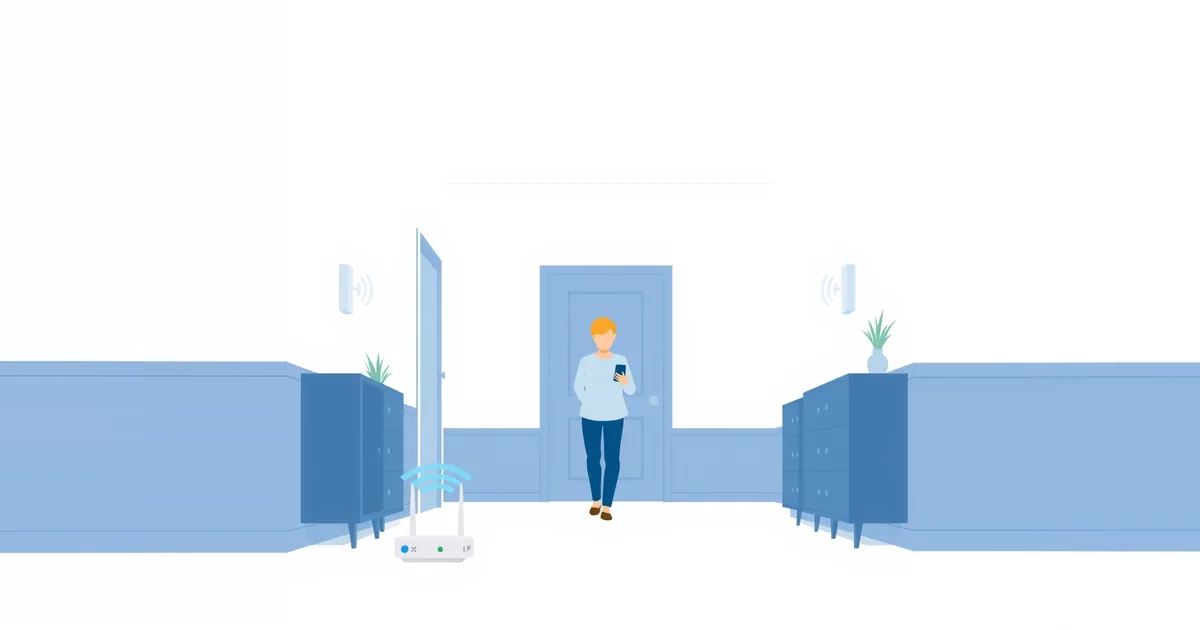
A device can stay connected to an access point in the next room even when a nearer one is available. The client generally decides when to roam. You can check whether it stayed with the old access point by tracking its BSSID, the identifier for the specific Wi-Fi radio connection.
Identify both access points
Use the mesh app or router management page to find which node serves your device. If the app exposes BSSIDs, note the identifier for each candidate radio. On some Windows systems, netsh wlan show interfaces can show connection details, including the BSSID where access is available. One Wi-Fi network name can have several BSSIDs, including different bands on the same physical node.
Walk the same route twice
Mark three spots: next to the first node, at the room boundary, and next to the second node. Start beside the first node and confirm the connection there. While a normal activity such as a call or local transfer is running, walk to each mark and note the serving node and what happened to the connection. Repeat in the opposite direction. Keep the same device and task.
| What you observe | What it suggests |
|---|---|
| The device reaches node B's room while still using node A | Roaming behavior is worth checking. |
| It switches to B and throughput is still poor | Look at B's signal or the link from B back to the router. |
| Both nodes give poor service at the middle stop | Check the coverage and placement of the nodes. |
| A second phone roams well along the same route | The first device's behavior or compatibility may be involved. |
An app may update less often than the client roams. Pause briefly at each mark and check again if the reading looks inconsistent. How to check Wi-Fi signal strength
Need the login details for your router? Look up the default IP address, username and password for your brand.
Find your router’s default loginChoose a change based on the result
Check firmware and whether nodes use the same network name and compatible security. If your equipment supports roaming assistance, 802.11k can help a client find neighbors, 802.11v can suggest a move, and 802.11r can shorten a supported handoff. Check your device and router documentation before enabling a setting. Re-run the same walk with one change at a time.
If the client changes nodes but still stalls, check placement and backhaul. Moving a mesh node closer to the client can make the node's own link to the main router weaker. How Ethernet backhaul changes mesh performance
Frequently asked questions
Does fast roaming force my phone to use the closest node?
Roaming assistance can make suitable handoffs easier. Devices also weigh signal, current activity, and nearby alternatives, and may stay with an adequate connection.