What Your Router and Modem Lights Mean — Red, Orange, Blinking or Off
Contents
The row of lights on your router is a small status report. Before calling support or resetting anything, a look at which light is off, orange or blinking usually tells you whether the problem is the router, the cable, the modem or the provider. Colors and icons differ between brands, but the logic is very similar on almost all of them.
The Lights on a Router
| Light (icon) | What it shows |
|---|---|
| Power (circle with a line) | The router is on. Blinking or amber often means it is starting up or updating. |
| Internet / WAN (globe) | The link to the modem and to the internet. The most useful light when nothing works. |
| Wi-Fi 2.4 GHz / 5 GHz (waves) | That Wi-Fi band is switched on. Blinking means traffic. |
| LAN / Ethernet (numbered or computer icon) | A device is connected to that port. Blinking means traffic. |
| WPS (two arrows) | Blinks while WPS pairing is active. |
| USB | A USB drive or printer is connected. |
Many newer routers have just one status light that changes color instead of a row of icons; the manual or app explains the colors.
What Colors and Blinking Usually Mean
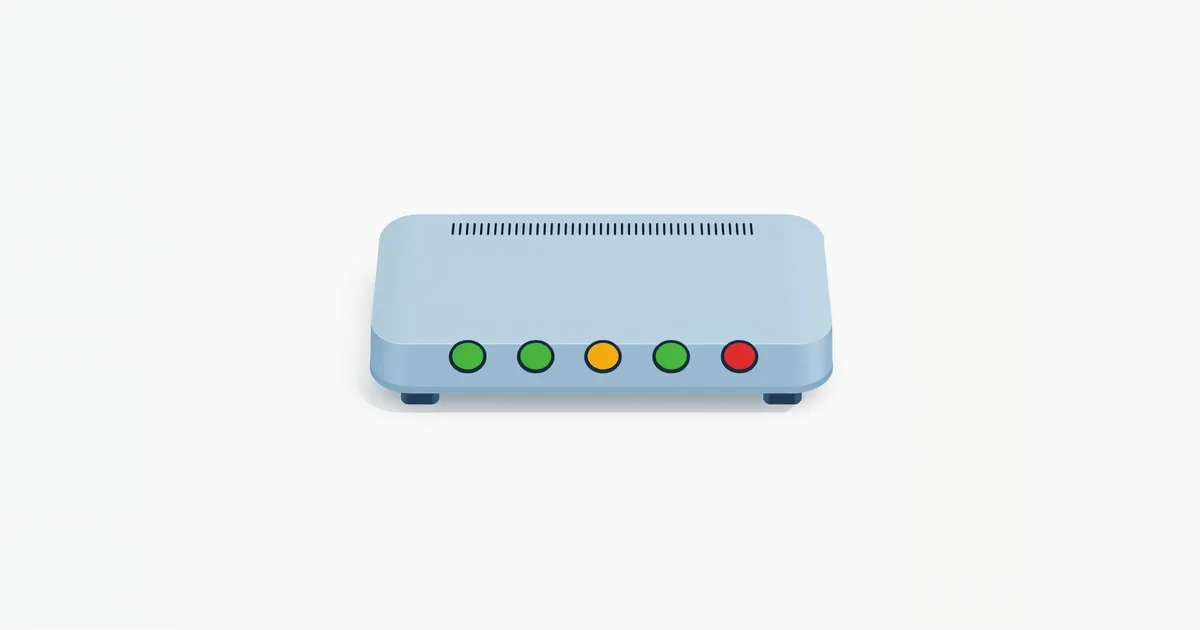
- Solid green, white or blue: working normally.
- Blinking green or white: activity — data is moving. Normal, and fast blinking just means a lot of traffic.
- Amber or orange: a warning, most often “connected, but something is missing”. On the internet light it usually means the router sees a cable to the modem but has no internet.
- Red: an error — no internet, a hardware fault or a failed update, depending on the light and the brand.
- Off: that function is not active — no cable, Wi-Fi switched off, or the device has no power.
NETGEAR’s own description of its routers is a good example: a solid amber internet light means the router detects an Ethernet cable to the modem, solid green or white means the internet connection is ready, blinking white means traffic, and off means no cable is connected. A solid amber power light means the router is still starting up.
Orange or Red Internet Light: What to Do
This is the most common light problem, and it points to everything between the router and the internet:
- Restart the modem, then the router. Turn both off, start the modem and wait until its lights settle, then start the router.
- Check the cable. It must go from the modem into the router’s Internet/WAN port, not a LAN port, and click into place at both ends. Try another cable if you have one.
- Look at the modem’s lights (below). If the modem has no connection to the provider, the router cannot have one either.
- Check the router’s internet settings if you recently set it up or reset it: the connection type (Dynamic IP or PPPoE) and, for PPPoE, the login from your provider. See how to set up a new router.
- Check for an outage with your provider, from a phone on mobile data.
If the internet light is green but devices still have no internet, see Wi-Fi connected but no internet.
Modem Lights
A cable modem typically has these lights:
Power — on when the modem has power.
Receive / DS (downstream) and Send / US (upstream) — blink while the modem searches for channels at startup, then stay solid once locked. If they keep blinking for many minutes, the modem cannot lock onto the provider’s signal; check the coax cable and call the provider.
Online — solid when the modem is connected to the provider and has internet. Off or blinking means it is not.
Ethernet / LAN — a device (usually your router) is connected.
DSL modems show DSL or Sync (the line to the provider) and Internet lights. A blinking DSL light means the modem is trying to sync with the line; check the phone cable, any filters, and call the provider if it does not settle.
Gateways that combine a modem and a router often have a single status light whose colors are listed in the provider’s app or support pages.
Fiber ONT Lights
The optical terminal on the wall for fiber internet usually has:
PON — solid when the connection to the provider’s fiber network is established; blinking while it is connecting.
LOS (loss of signal) — normally off. A red or blinking LOS light means no light is arriving through the fiber: the fiber cable may be disconnected, bent or damaged, or there is a fault on the provider’s side. Do not unplug or look into the fiber; call the provider.
LAN — your router is connected.
Check Your Model’s Exact Meaning
Light colors are not standardized. A blinking orange light can mean “firmware update in progress” on one router and “no internet” on another, so check the manual or the support page for your model. Our router brand pages list models and default logins; when you open the router’s settings — see what is my router IP — the status page tells you the same in words.
Frequently asked questions
What does an orange internet light on a router mean?
On most routers, that the router sees a cable to the modem but has no internet connection. Restart the modem and router, check the cable and the modem’s lights.
What does a red light on my router mean?
An error. On the internet light it usually means no internet; on the power or status light it can mean a hardware fault or a failed update. Restart first, then check the manual.
Is it normal for router lights to blink?
Yes. Blinking Wi-Fi, LAN and internet lights show traffic. Constant blinking of the power light, or blinking that never stops at startup, can point to a problem.
Which lights should be on when the internet works?
Power, internet (solid green, white or blue) and at least one Wi-Fi light. On the modem, power and online should be solid.
What does a red LOS light mean on a fiber box?
No signal is arriving through the fiber. Check that the fiber cable is connected without sharp bends, but do not look into it, and contact the provider.
Sources
- What do the LEDs on my NETGEAR router mean? — NETGEAR Support