What Is DMZ on a Router — and When Should You (Not) Use It?
Contents
Somewhere in your router’s settings, next to port forwarding, there is an option called DMZ. Forums often suggest it as the quick fix for a strict NAT type or an app that cannot accept incoming connections. It does fix those problems — by switching off the router’s protection for one device entirely. Here is what the setting really does, when it is reasonable, and what to try first.
What the DMZ Setting Does
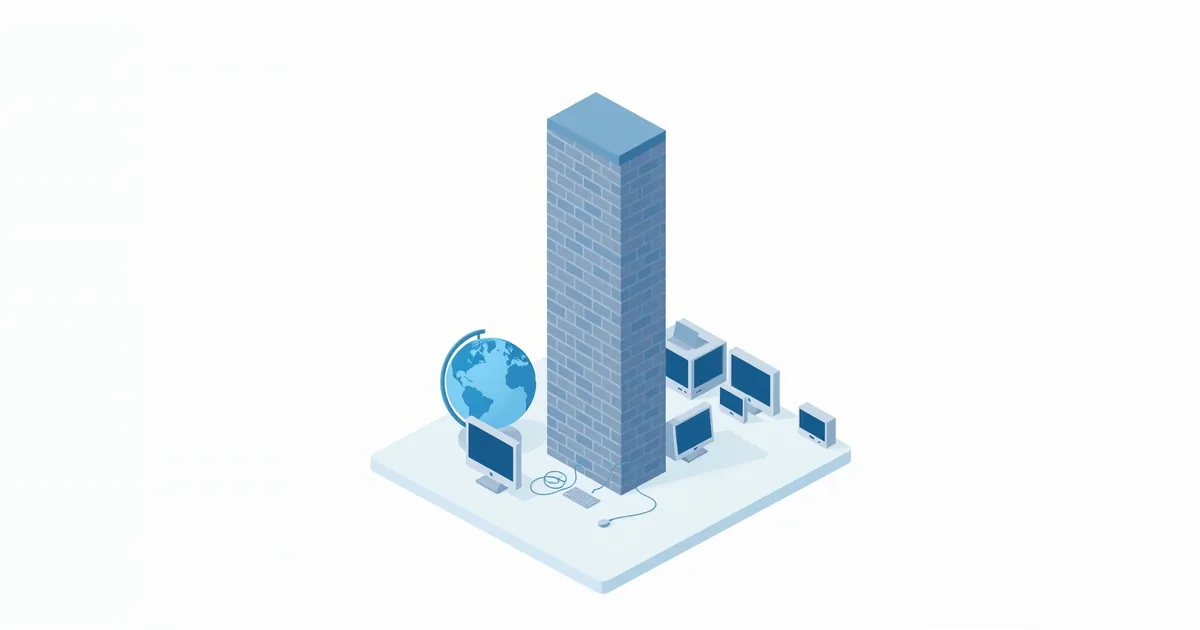
Normally your router’s firewall blocks every connection attempt that comes from the internet unless it belongs to something a device inside started. NETGEAR describes the DMZ feature as forwarding all inbound traffic to one specified IP address on your local network. TP-Link puts it the same way: the DMZ host has all UDP and TCP ports open and exposed, except ports you have forwarded to other devices.
In other words, the chosen device receives everything the internet sends to your public IP address that is not claimed by another rule. It is port forwarding for every port at once.
Not a Real DMZ
In company networks, a DMZ (“demilitarized zone”) is a separate network segment between two firewalls, where public servers live so that a break-in does not reach the internal network. TP-Link notes that a home router’s DMZ host is, strictly speaking, not a true DMZ: the device stays inside your home network, on the same network as your laptops and phones. Only the router’s protection in front of it is removed.
Why It Is Risky
NETGEAR is blunt: unlike port forwarding or UPnP, a DMZ removes all of the router’s firewall protection for the device. Every service running on it — file sharing, remote desktop, a web interface, anything with a known vulnerability — becomes reachable from the whole internet. And if the device is compromised, NETGEAR warns, it can be used to attack the other computers on your network.
ASUS adds the same caution: opening all ports on a PC makes the network vulnerable to outside attacks. TP-Link advises disabling the DMZ as soon as it is no longer needed.
A game console exposed this way is a smaller risk than a Windows PC, because consoles run few services. A computer with personal files, saved passwords or work data should not be a DMZ host.
When DMZ Makes Sense
Double NAT workaround. If you have a provider gateway in front of your own router and cannot use bridge mode, setting your router’s address as the DMZ host on the gateway passes all traffic through to your router, which keeps its own firewall. This is the safest and most useful use of the setting; see double NAT.
A short test. If an app or game does not work and you suspect blocked ports, enabling DMZ for a few minutes shows whether ports are the problem. Turn it off afterwards and set up proper rules.
Devices with unknown port needs. TP-Link mentions IP cameras and some software where it is unclear which ports to open. Even then, the manufacturer’s port list or UPnP is the better long-term choice.
Try These First
UPnP. Lets the device open exactly the ports it needs, when it needs them. NETGEAR notes that UPnP is not as secure as port forwarding but preserves more firewall protection than a DMZ. For game consoles, it usually gives an Open NAT; see NAT type strict.
Port forwarding. Opens only the specific ports an application needs, to one device. This is what NETGEAR recommends wherever possible; see how to port forward. Check the result with our port checker.
Fixing double NAT properly. Bridge mode on the provider’s gateway removes the reason for most DMZ workarounds.
How to Set Up a DMZ Host
The steps are similar on every router:
- Give the device a fixed address. The DMZ points to an IP address, so it must not change. Use a DHCP reservation in the router, as ASUS recommends under LAN → DHCP Server; see what is a static IP address.
- Open the DMZ setting. On TP-Link it is under Advanced → NAT Forwarding (or Forwarding) → DMZ; on ASUS under WAN → DMZ; on NETGEAR in the WAN setup page as Default DMZ Server. Sign in to the router first — see what is my router IP.
- Enable it and enter the device’s IP address. Save; TP-Link asks you to restart the router.
- Test, then decide. If it fixes the problem, replace it with port forwarding or UPnP if you can, and turn the DMZ off.
Only one device can be the DMZ host at a time.
Frequently asked questions
Is it safe to put my PS5 or Xbox in the DMZ?
It is less risky than a PC, but it still removes the router’s firewall for the console. UPnP or forwarding the console’s ports gives an Open NAT with less exposure.
Does DMZ improve gaming speed or ping?
No. It only affects whether incoming connections reach the console. It can fix a strict NAT type, but it does not lower latency.
What is the difference between DMZ and port forwarding?
Port forwarding sends specific ports to one device. DMZ sends all ports that are not otherwise forwarded to one device.
Should I set DMZ on my provider’s gateway?
Only to pass traffic to your own router when bridge mode is not possible. Then your router’s firewall still protects your devices.
How do I know if DMZ is turned on?
Check the DMZ page in the router settings. If it is enabled with an address you do not recognise, turn it off.
Sources
- What is a DMZ and how to configure DMZ host — TP-Link Support
- What is the De-Militarized Zone (DMZ) feature on my NETGEAR router? — NETGEAR Support
- DMZ introduction and set up — ASUS Support