Check whether beamforming helps in the room where Wi-Fi slows down
Contents
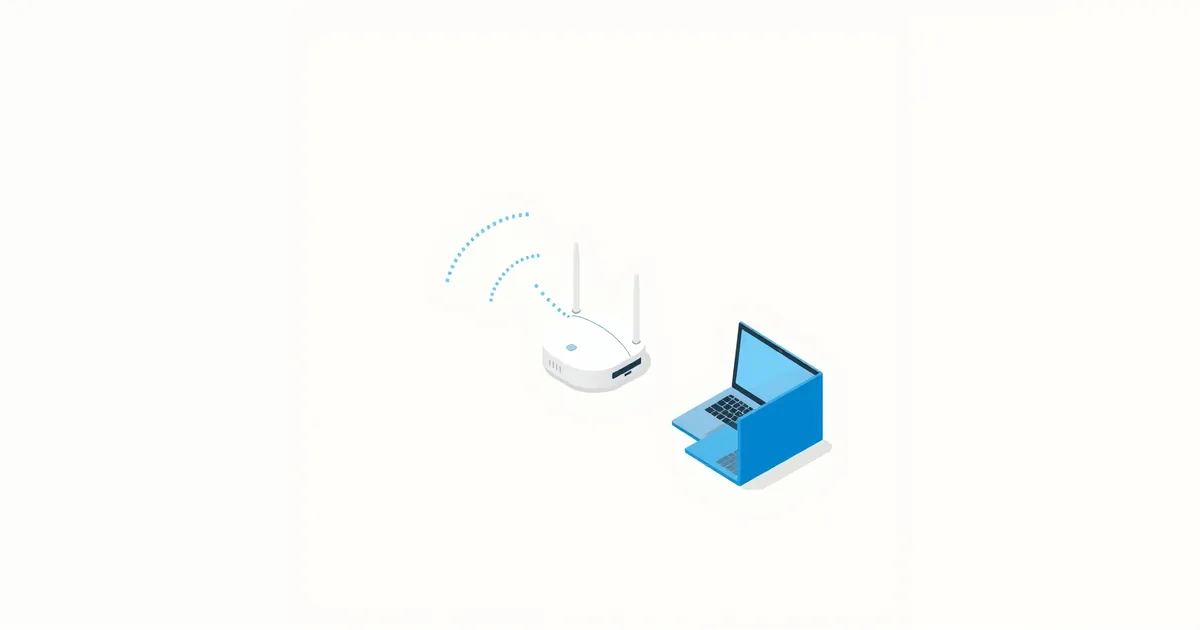
Wi-Fi beamforming lets a router use multiple antennas to improve reception in the direction of a particular device. If your connection works well, leave the router’s setting as it is. If a laptop keeps slowing down in one room and your router exposes a beamforming switch, compare the two settings there before deciding which to use. TP-Link’s explanation of Wi-Fi beamforming
How a router directs the signal
The router sends a signal through multiple antennas and adjusts how those transmissions overlap. At the receiving device, they can reinforce each other. With explicit beamforming, compatible devices send feedback the router can use to adjust the transmission. The behavior depends on both ends of the Wi-Fi link. NETGEAR’s beamforming overview
Find out what your router setting controls
Check the manual for your exact model. A setting labeled Implicit Beamforming, for example, may control only the mode that works without explicit beamforming feedback from the device. Switching that setting off tells you how the implicit mode affected your test. You may have no separate switch for the other mode. NETGEAR’s example of an implicit beamforming setting
Write down the current setting first. Changing it may interrupt Wi-Fi briefly. If the router offers no control, try the Wi-Fi signal checks in the room where you have trouble.
Need the login details for your router? Look up the default IP address, username and password for your brand.
Find your router’s default loginCompare the two settings in one room
- Leave the same laptop in the same spot and orientation. Copy a large file, such as a 500 MB video, from a computer connected to your router by Ethernet. A copy over the home network keeps internet speed out of the comparison.
- Time three copies and write down the middle time after sorting them. Check that data is moving over Wi-Fi during each run. Skip any run served from a local cache.
- Change only the beamforming setting. Reconnect the laptop if needed and check that it’s back on the same Wi-Fi band and access point. Then repeat the three copies.
An illustrative result with the same 500 MB file could look like this.
| Router setting | Copy times | Middle time | Approximate transfer rate |
|---|---|---|---|
| Off | 39, 40, 41 seconds | 40 seconds | 12.5 MB/s |
| On | 31, 32, 33 seconds | 32 seconds | 15.6 MB/s |
Divide file size by the middle time to compare throughput. In this example, each run with the setting on finishes sooner. If your times overlap, repeat the test at another time of day or switch back and see whether the earlier result returns. Use the setting that helps the affected device consistently. For weak Wi-Fi across several rooms, check router and access point placement.
Frequently asked questions
Does beamforming increase my internet plan speed?
Your plan’s speed stays the same. A better Wi-Fi link can help you use more of the connection you already have when that link is the slowest part of the path.